
Sourcing Management · Beginner
ClearDesk: the whole deal on your phone
ClearDesk runs a whole sourcing deal from your phone in plain words: prices, the client offer, both orders, production, the quality check, shipping papers and money. Nothing is ever sent until you press Approve.
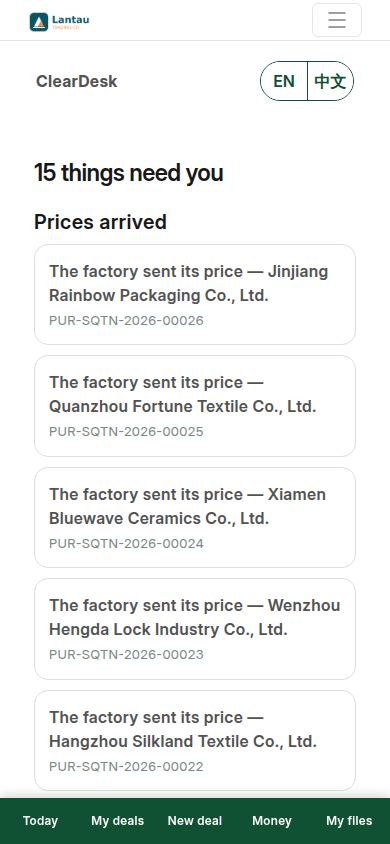
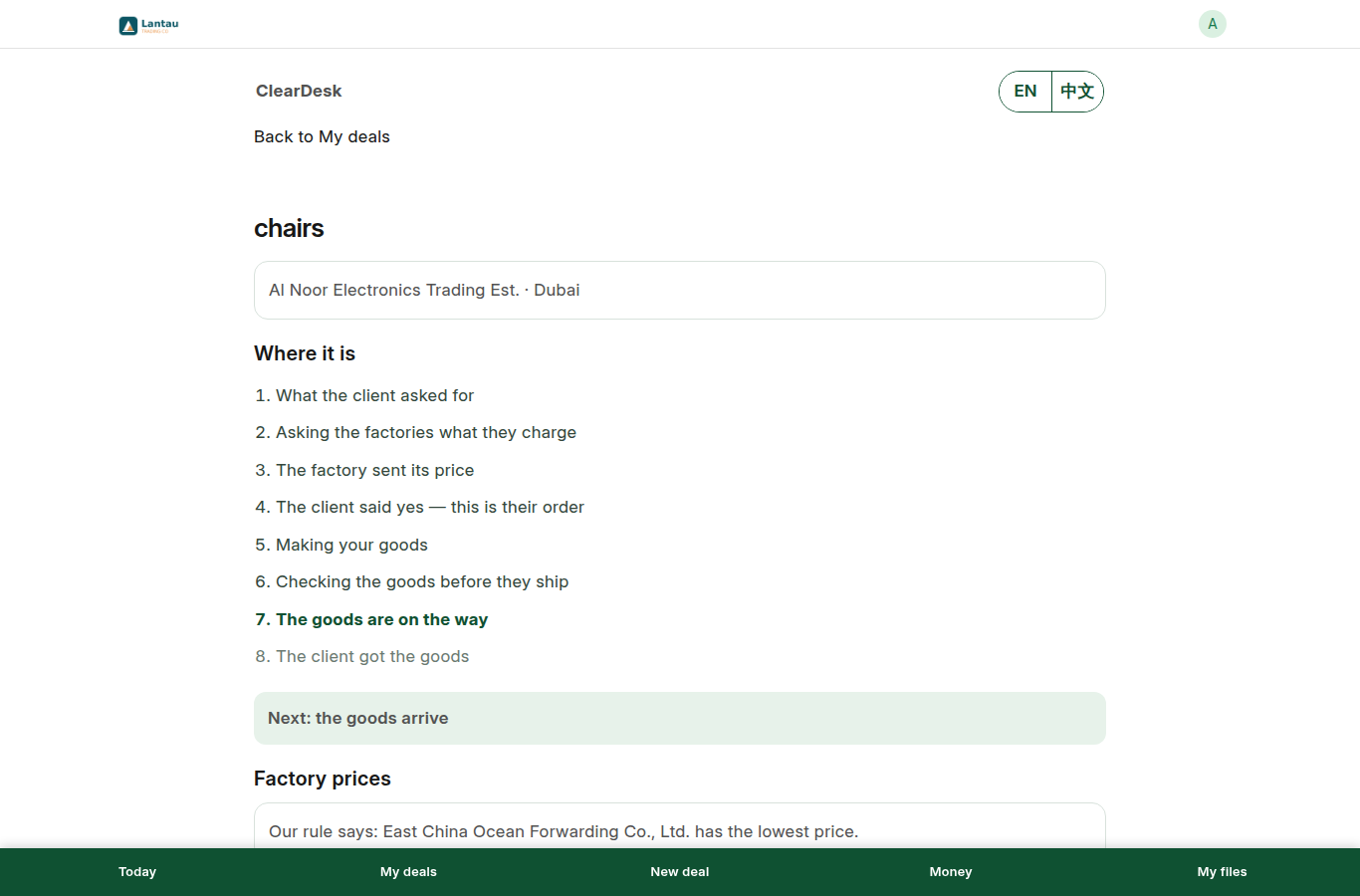
ClearDesk is the phone-first way to run Sourcing Management. Open /clear after you sign in. Five tabs sit at the bottom: Today, My deals, New deal, Money, and My files. Every screen is in plain words, in English or 中文 — tap the language pill at the top.
The one rule
The assistant only ever prepares. Nothing is sent to a client or a factory, and nothing is saved as final, until you press Approve. Every Approve button says what will happen before you press it. Prices, dates and names on screen always come from your stored records — the assistant never invents a number.
Start a deal (under a minute)
Tap New deal and answer the assistant’s questions one at a time: what you want to buy, how many, who it is for, where the goods go, and which factories to ask. Check the summary and press Approve. The deal is saved as a draft; nothing is sent.
Brand new and not sure? Open My deals and press Approve — copy this example. ClearDesk makes one finished example deal on your account, marked “Example” everywhere, so you can open it and see how every step looks before you run a real one.
Prices and your offer
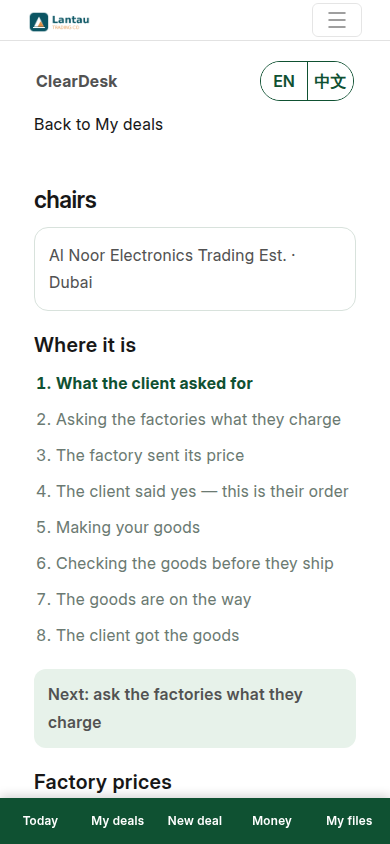
On a deal page, type a factory’s price (factory, how many, price for one, carton size if you know it) and press Approve — save this price. You can also drop the factory’s Excel, PDF or photo in My files and approve what the assistant found. When two prices exist, ClearDesk lines them up and tells you the rule out loud: the lowest stored price is the recommendation. Mixed currencies are never compared.
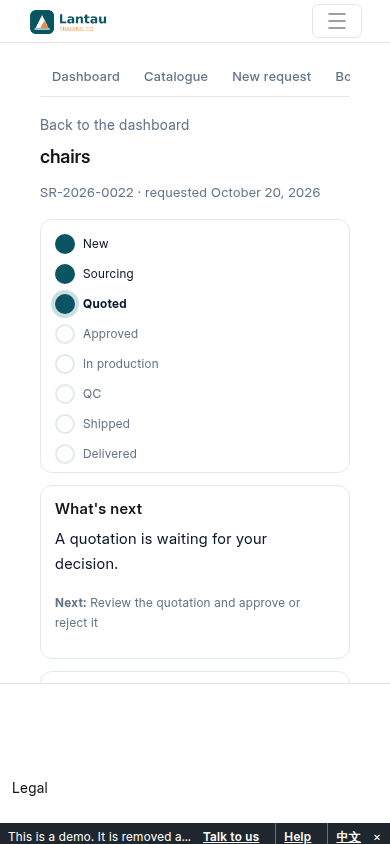
Press Approve — choose this factory to build your offer on that price, then Approve — make the offer. The offer appears in your client’s portal. No email is sent — the client signs in and decides there.
The two orders
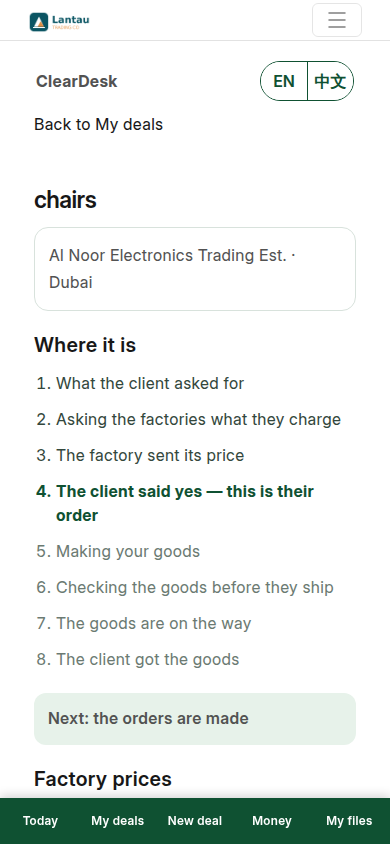
When the client says yes, the deal page shows two separate buttons, each with its own explanation:
- Approve — create the client order — makes the client’s order from the approved offer. The factory order is not made yet.
- Approve — create the factory order — makes your order to the factory. The client is never shown on it.
Production and the quality check
The factory order carries production steps (sample, production start, production end, inspection, ready). Set planned dates as you agree them; a step past its date says in plain words how late it is. When the goods arrive, press Approve — record the quality check: ClearDesk records the delivery from the factory and the inspection against it, as real documents.
Shipping papers and money
After the check, Approve — goods have left records the shipment leaving. The deal page then prints the proforma invoice (PI), packing list (PL) and commercial invoice (CI). The bill of lading (B/L) is different: the shipping company makes it, never us — you only upload it to the deal.
Money lists what clients owe you and what you owe factories. Anything late says how many days. Press Draft a reminder to see the reminder written from that invoice’s real numbers, then Approve to save the draft. It is a draft — nothing is sent.
If something goes wrong
Every failure answers with one plain sentence in your language, and nothing is changed. Read it, fix what it names, and try again. Empty screens are never blank: each one tells you what to do first.
Related pages
-
Sourcing Workflow
How a deal moves from the client's request to factory quotes, costing, the order, quality control and shipment, and what works today.
-
Client Portal Guide
What your clients see on the portal, how to invite their buyers, and what stays hidden from them.
-
Try the demo
Your own Sourcing Management demo company for 24 hours: free, no sign-up, three logins, ready in about a minute.
Still have a question?
Ask the PHOENIX assistant in the chat at the bottom right, or send us a message. We reply within one business day.