
Sourcing on Native · Beginner
Client Portal Guide
What your clients see on the PHOENIX Native portal, how they are invited, what stays hidden from them and how comments, attachments and notifications work.
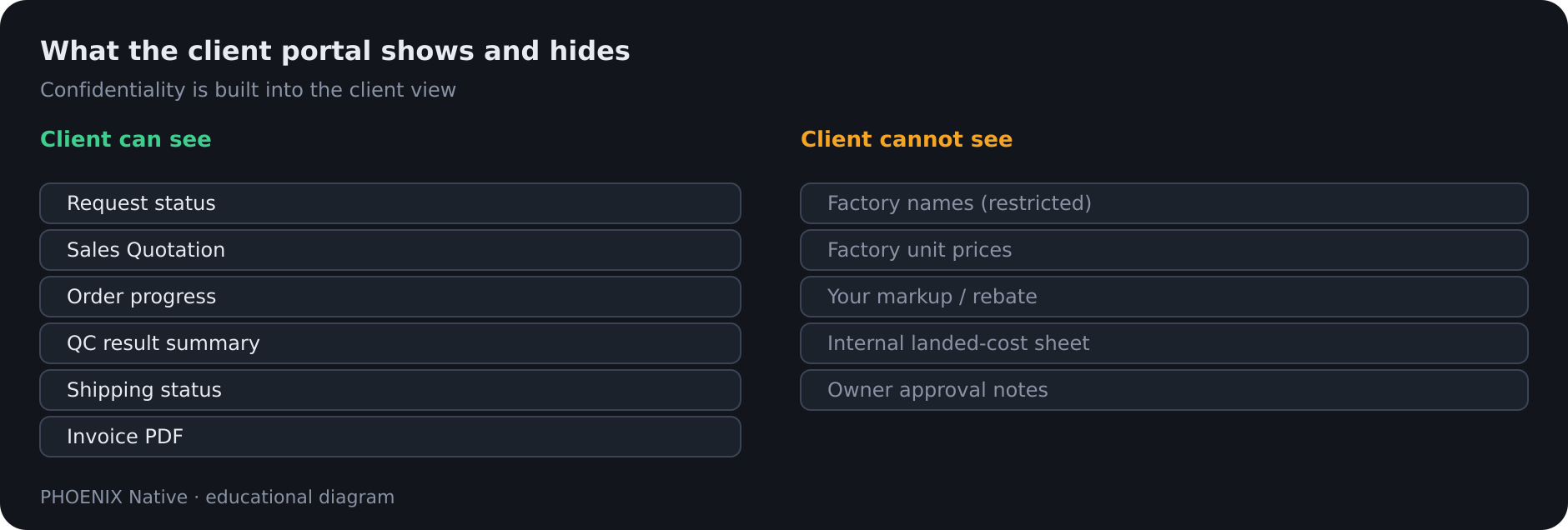 Diagram: what the client portal shows and hides
The client portal is where your clients send requests, review quotations, follow their orders and see their invoices. A client signs in to the portal and never lands in your staff workspace. The portal follows the same deal as your team, without supplier names or costs.
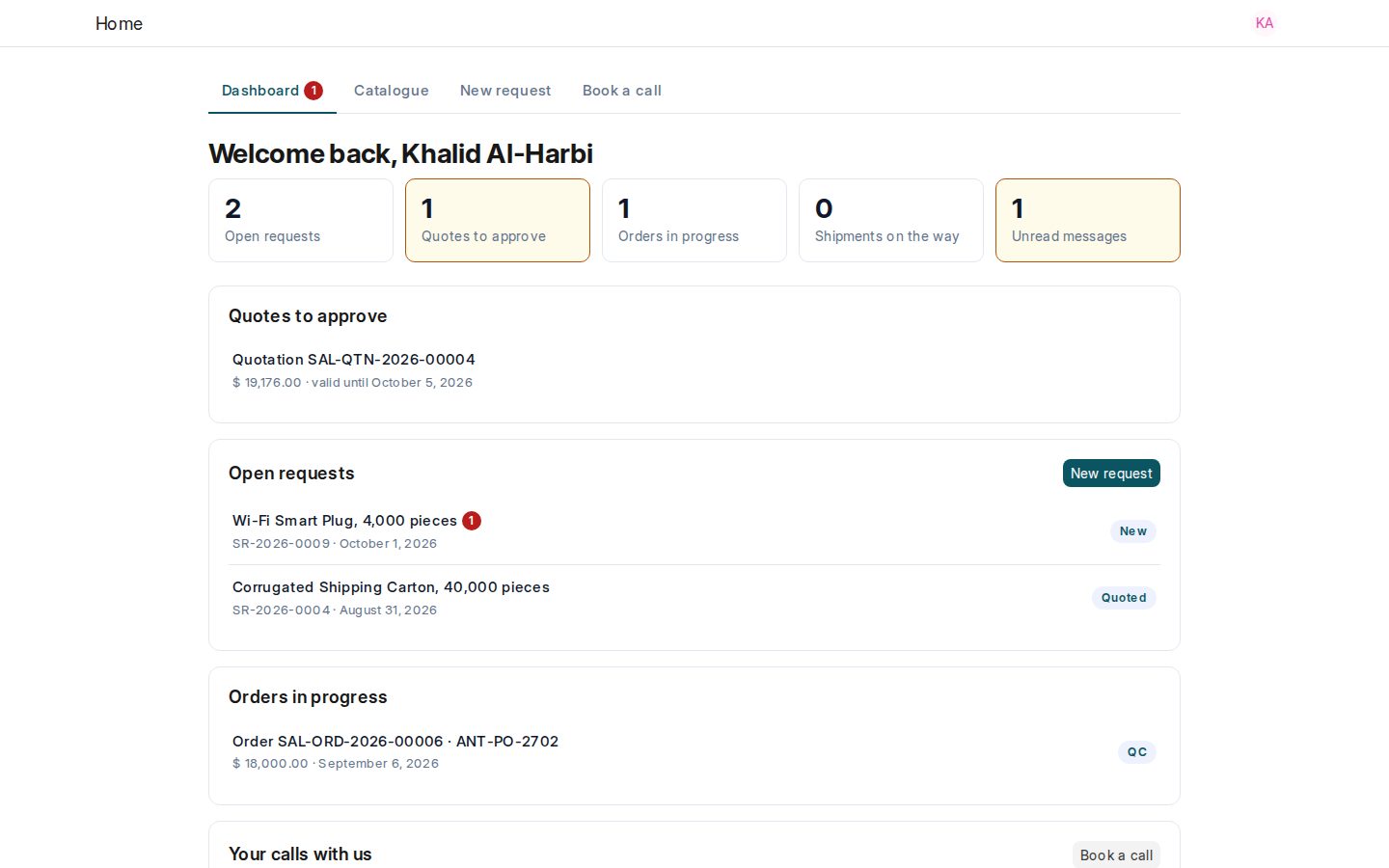 Real PHOENIX Native screen (synthetic demo data)
Inviting a client’s buyers
- Create the client company in your workspace.
- From workspace administration under More, invite the buyer to the portal.
- The buyer follows the invitation, signs in and sees only that client company’s records.
What the client sees
| Area | What is on it |
|---|---|
| Requests | The client’s own requests: items, requirements and attachments. A client can send a new request |
| Timeline | Eight stages: New, Sourcing, Quoted, Approved, In production, QC, Shipped, Delivered |
| Quotations | The released Sales Quotation: read it, download PDF or Excel, and accept with an electronic signature (name and optional drawn signature) |
| Orders | The client’s orders, with progress |
| Quality check | The result: Passed, Failed or Pending |
| Invoices | Invoice detail, with PDF and Excel to download |
| History | A client-safe history, such as quotation released, order created, quality check failed, shipment in transit |
| Notifications | Updates to a request, quotation, order or invoice |
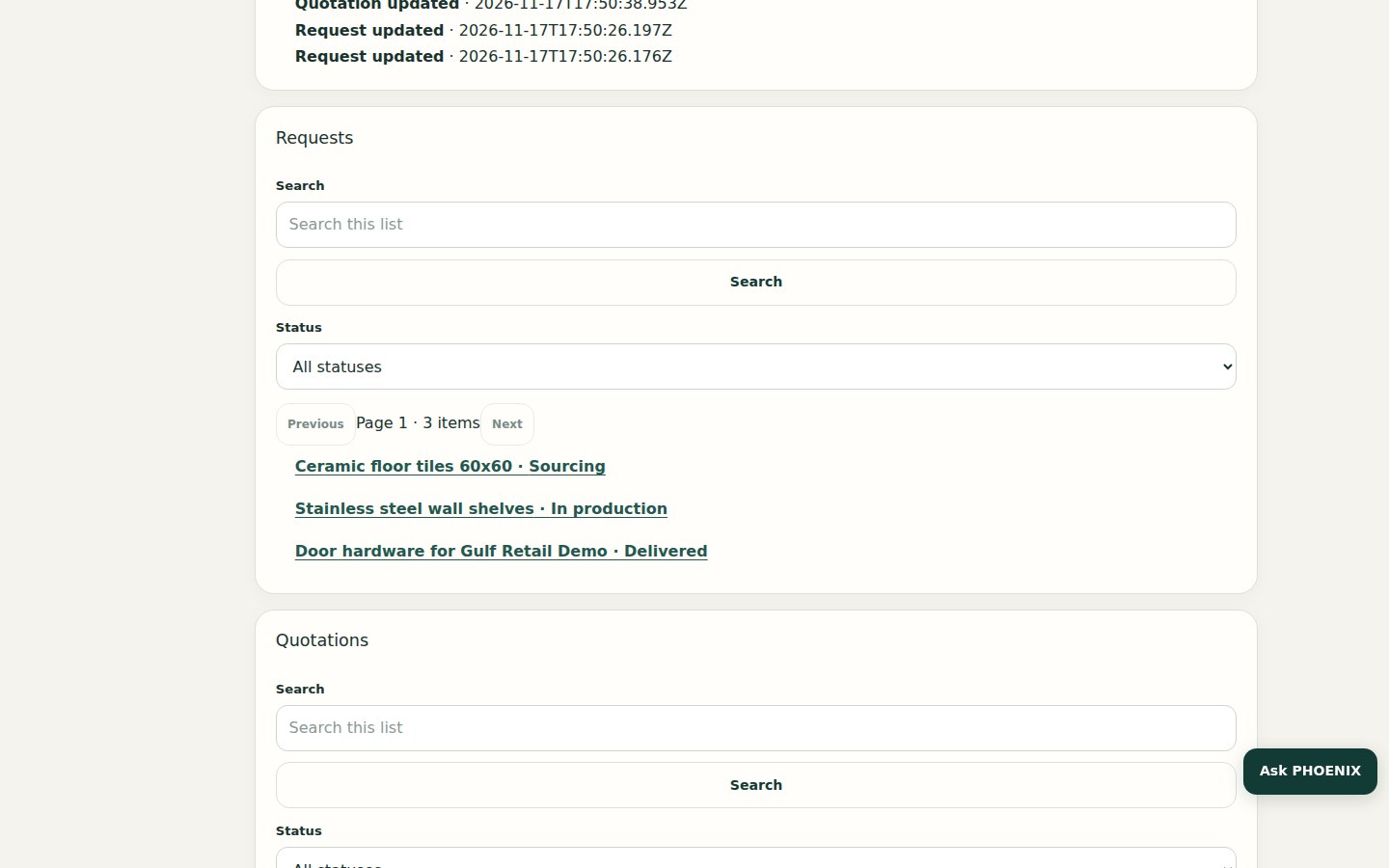 Real PHOENIX Native screen (synthetic demo data)
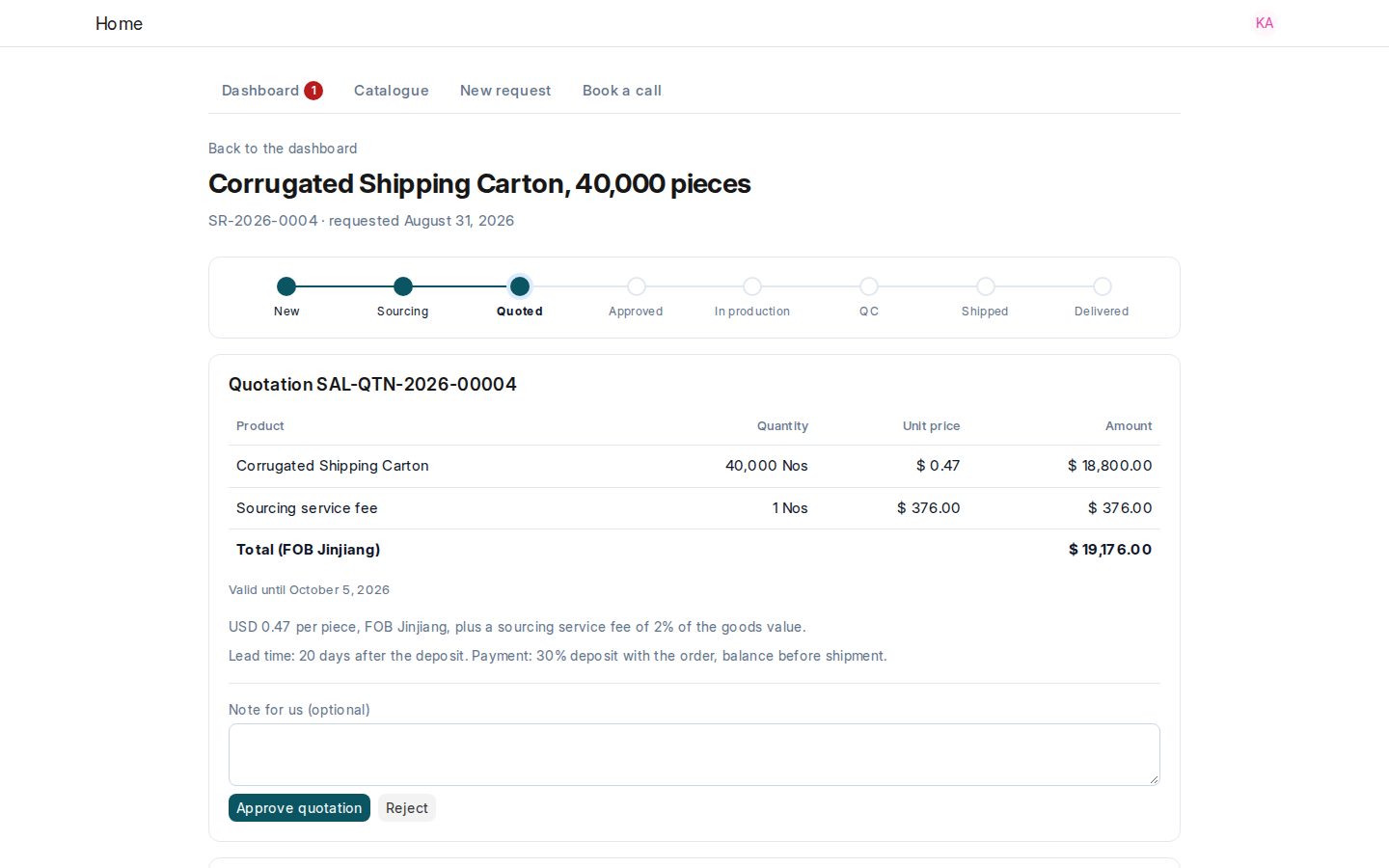 Real PHOENIX Native screen (synthetic demo data)
What stays hidden
| Hidden from the client | Why |
|---|---|
| Supplier names | Your suppliers stay private |
| Factory prices and costs | Your cost base stays private |
| Margins, rebates and your earnings | Your deal economics stay internal |
| Other clients’ records | Each client sees only its own company |
Every portal request is checked on the server for the signed-in client, so hiding is not left to the screen alone. The assistant on the portal follows the same rules.
Comments, attachments and notifications
- Comments. A client can comment on its own records, and your team replies on the same record.
- Attachments. Files belong to the record they are attached to. A client sees only files on records it can open.
- Notifications. The portal shows in-app notifications when a request, quotation, order or invoice changes.
- Take care what you write. Treat any comment or file on a record the client can open as visible to the client.
Decisions and failed quality checks
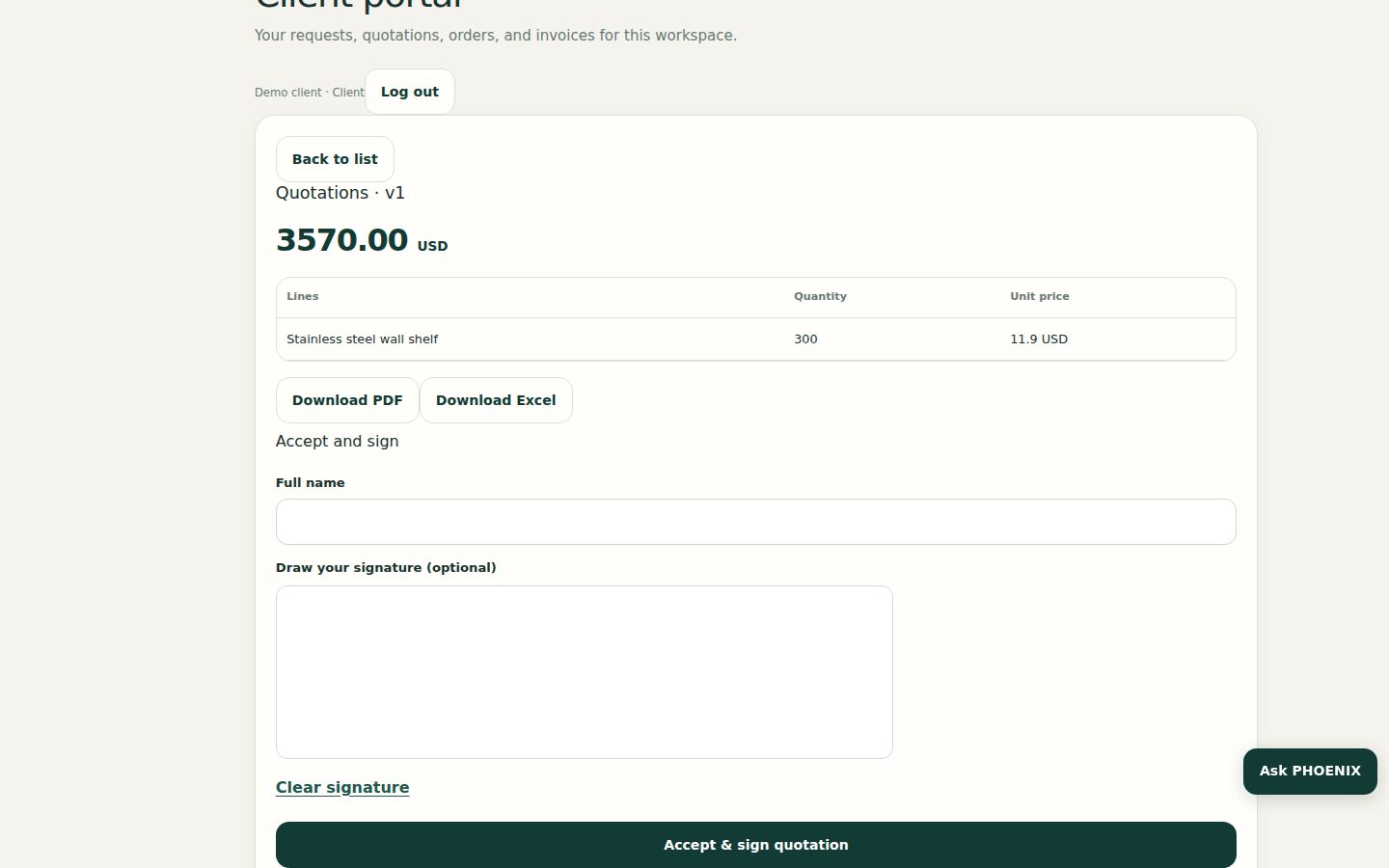 Real PHOENIX Native screen (synthetic demo data)
The client can accept a released quotation on the portal with Accept & sign. The signer name, time and optional drawn signature are stored on the record. If a quality check fails, the portal shows Failed and the history records it. After the issue is fixed and the check is repeated, the new result shows. See Sourcing workflow.
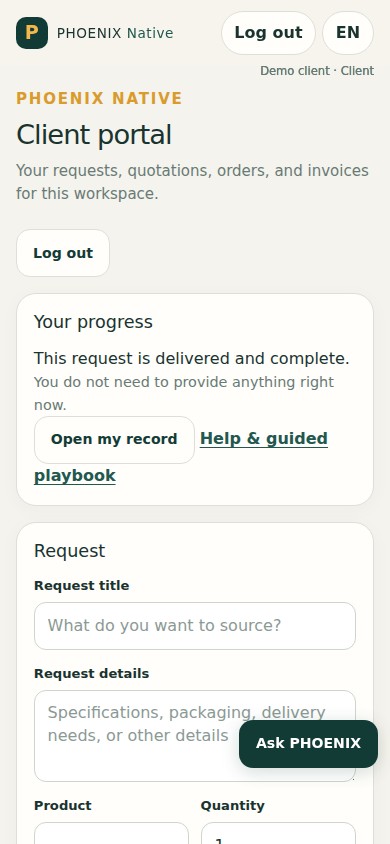 Real PHOENIX Native screen (synthetic demo data)
Earlier ClearDesk portal
ClearDesk had its own portal with different pages. Its guides are historical. See ClearDesk.
Related pages
-
Sourcing Workflow
How a deal moves in PHOENIX Native, from the client's request to RFQ, supplier quotations, landed costing, pricing, approval, order, quality control, shipping and invoice.
-
Users, roles and permissions
PHOENIX Native has three roles: owner, staff and client. What each can do, what clients never see and how people are added.
-
Getting Started
How a PHOENIX Native workspace is organised and the first steps for an owner: your team, suppliers, clients and your first request.
Still have a question?
Ask the PHOENIX assistant in the chat at the bottom right (read-only guidance), or send us a message. We reply within one business day.
The self-service trial creates a ClearDesk-generation cloud site today. To see PHOENIX Native, talk to us.