
Sourcing on Native · Beginner
Sourcing Workflow
How a deal moves in PHOENIX Native, from the client's request to RFQ, supplier quotations, landed costing, pricing, approval, order, quality control, shipping and invoice.
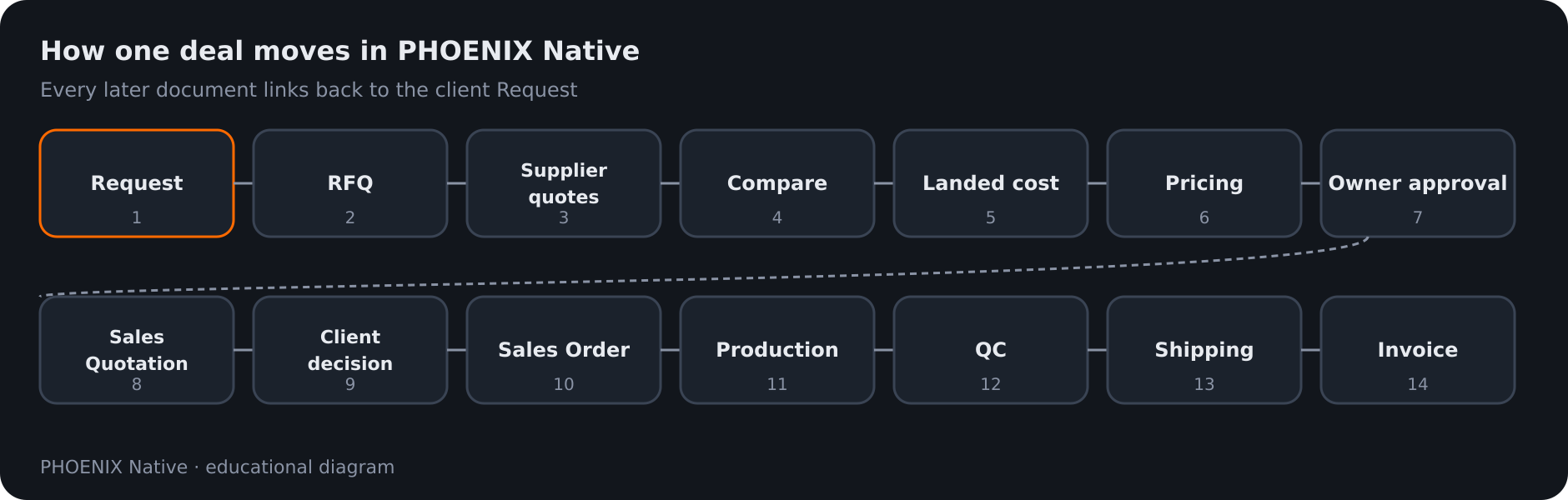 Diagram: the full Native deal path from Request to Invoice
In PHOENIX Native every deal starts with a client Request, and every later document links back to it. Staff and owners work in five places: Today, Requests, Deals, Suppliers and More. Today shows the recommended next step for your role, and the workflow strip on a record shows where the deal stands.
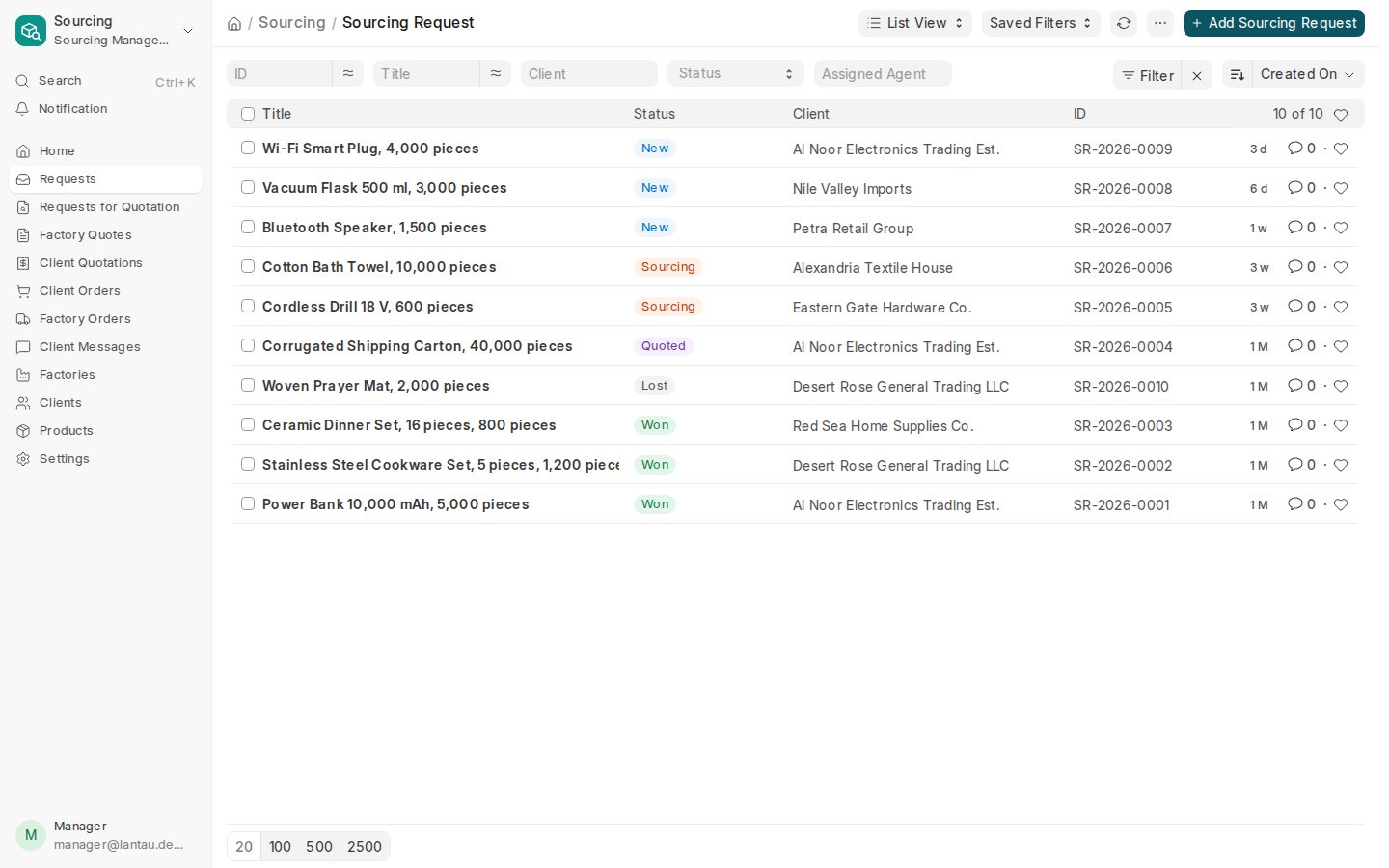 Real PHOENIX Native screen (synthetic demo data)
The path of one deal
| # | Step | Who | What happens |
|---|---|---|---|
| 1 | Request | Client or staff | Items, requirements and attachments are recorded |
| 2 | RFQ | Staff | A request for quotation is linked to the request and its items |
| 3 | Supplier Quotation | Staff | Each supplier’s price is recorded |
| 4 | Comparison | Staff | Quotations are compared and one is awarded |
| 5 | Landed costing | Staff | Factory (FOB) price plus freight, insurance, customs and local fees |
| 6 | Pricing | Staff | One of four pricing models sets the client price and your earnings |
| 7 | Approval | Owner | The owner approves and releases. Staff cannot |
| 8 | Sales Quotation | Staff | The released quotation reaches the client |
| 9 | Client decision | Client | The client decides on the portal |
| 10 | Sales Order | Staff | The accepted quotation becomes an order |
| 11 | Production | Staff | Production checkpoints are completed |
| 12 | Quality control | Staff | A check passes, or fails and is repeated (re-QC) |
| 13 | Shipping | Staff | The shipment is recorded as in transit, then delivered |
| 14 | Portal and invoice | Client and staff | The client follows progress and sees the invoice. Balanced journals are posted |
1. Request
A request holds the client’s items, their requirements and attachments. Clients can send requests from the portal, and staff can record them under Requests. Each request keeps its history and comments.
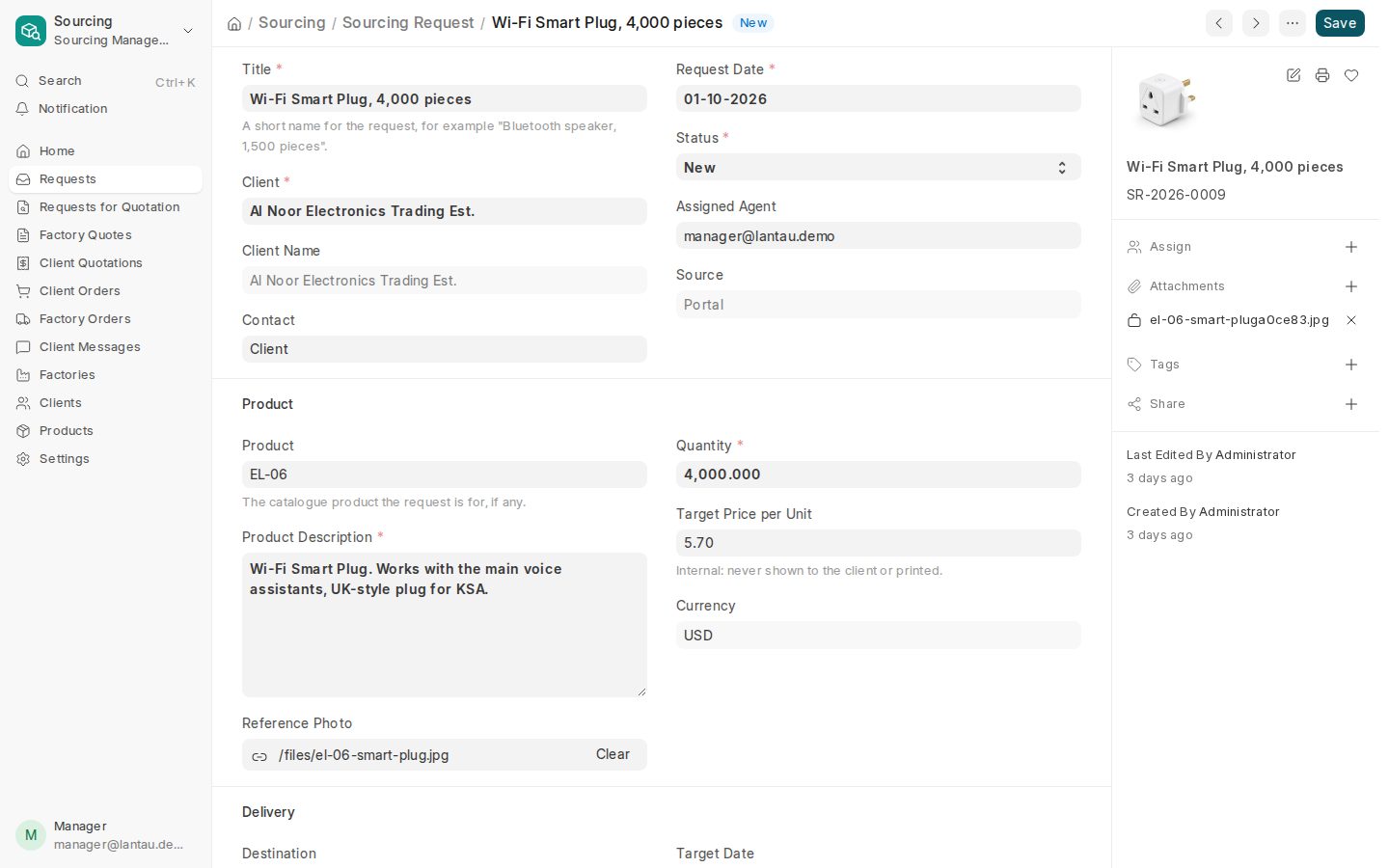 Real PHOENIX Native screen (synthetic demo data)
2 to 4. RFQ, Supplier Quotations and comparison
Purchasing is under More (an available module, not a primary sourcing destination). An RFQ is linked to the request and its items. Record each supplier’s Supplier Quotation, compare them and award one. Only totals in the same currency are compared, and no exchange rate is applied for you. Suppliers are kept under Suppliers. Projects is also available under More as an optional module; it is not part of the primary sourcing navigation (Today, Requests, Deals, Suppliers).
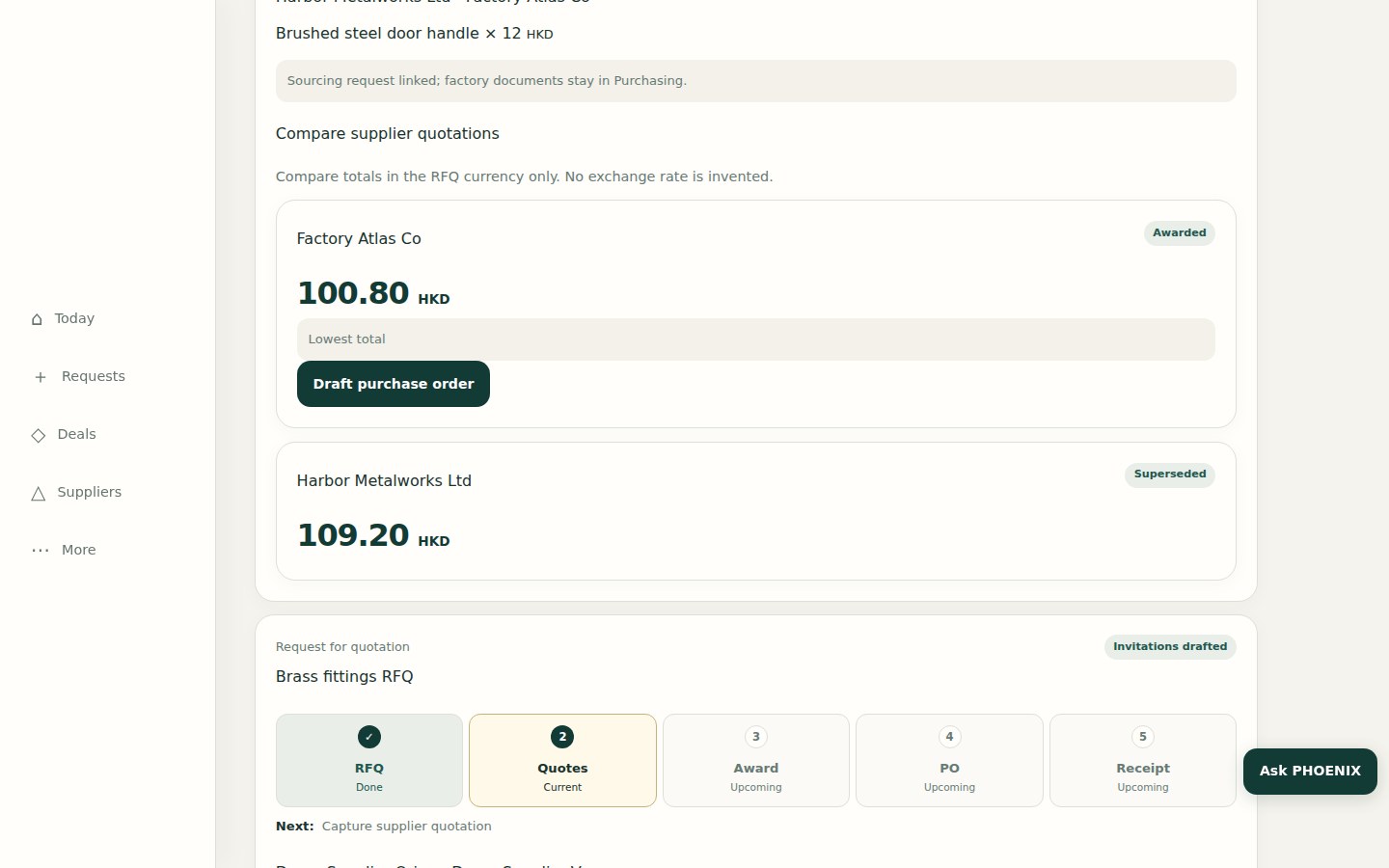 Real PHOENIX Native screen (synthetic demo data)
5 and 6. Landed costing and pricing
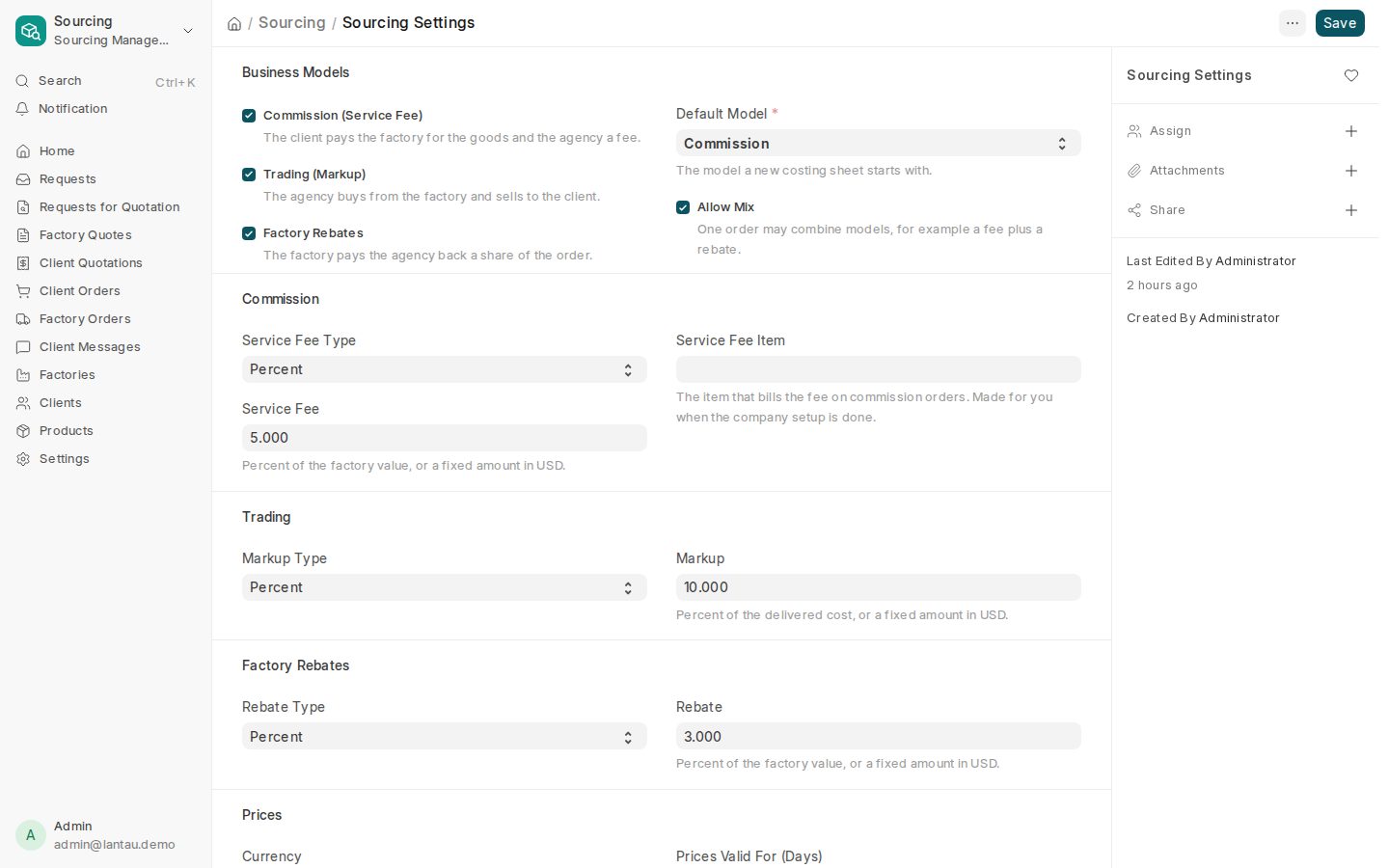
A landed-cost sheet starts from the FOB price and adds freight, insurance, customs duty and local fees. Then you choose a pricing model.
| Model | How it works |
|---|---|
| Commission | A service fee, as a percentage of the factory total or a fixed amount. It is its own line for the client |
| Markup | A percentage of delivered cost or a fixed amount, spread across the product prices |
| Factory Rebate | A percentage of the factory total or a fixed amount, paid by the factory. It is never part of the client’s price |
| Mix | The components you switch on, combined. Nothing is counted twice |
See Business models.
 Real PHOENIX Native screen (synthetic demo data)
7 to 10. Approval, Sales Quotation, client decision and Sales Order
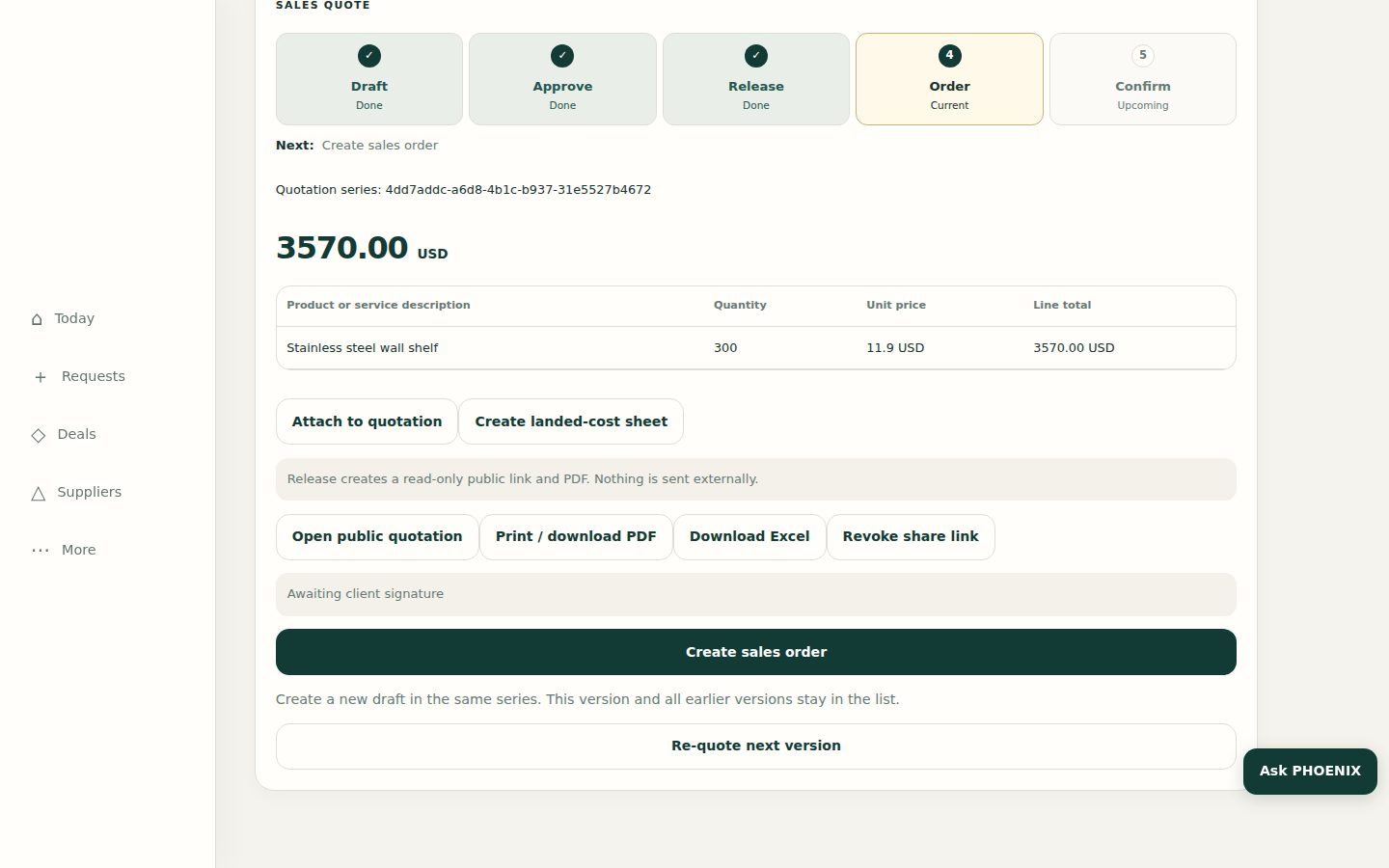
The owner approves the priced quotation and releases it. Releasing creates a read-only link, a PDF and an Excel download, and nothing is sent outside the app by the release itself. The client can accept on the portal with an electronic signature. When the client accepts, a Sales Order is created.
 Real PHOENIX Native screen (synthetic demo data)
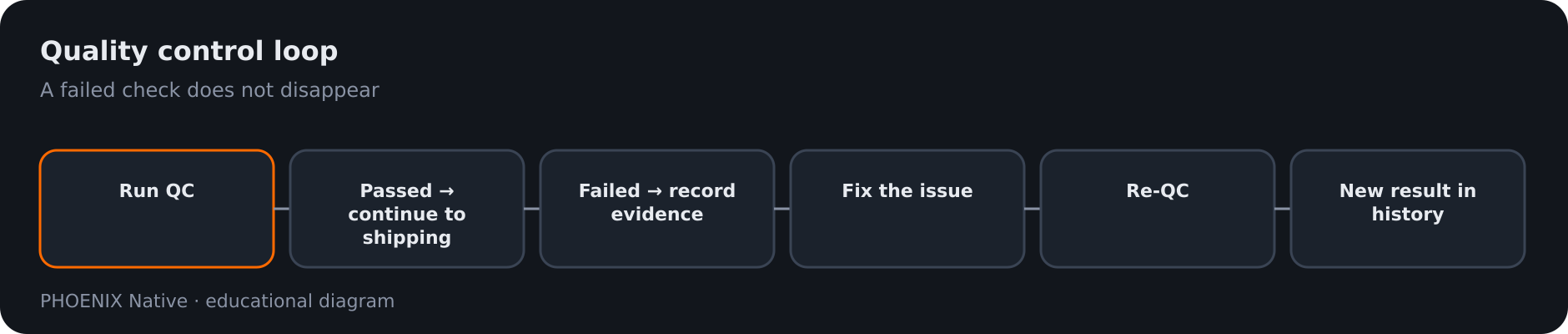 Diagram: QC pass, fail, fix and re-QC
11 to 13. Production, quality control and shipping
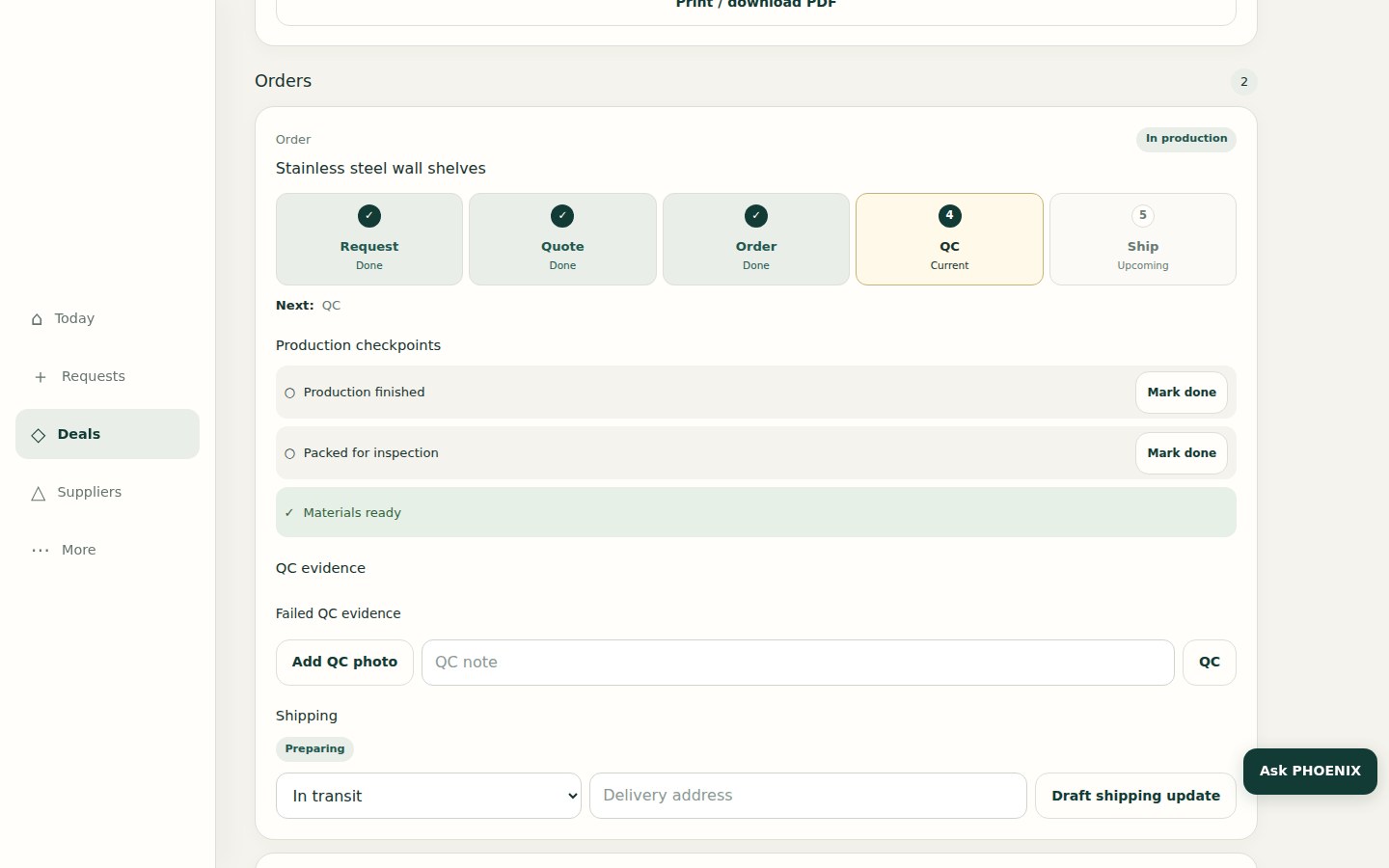
Production is tracked with checkpoints. Quality control records a result: Passed, Failed or Pending. A failed check stays visible in the history. When the issue is fixed, the check is repeated (re-QC) and the new result is recorded. Shipping is then recorded as in transit and delivered.
 Real PHOENIX Native screen (synthetic demo data)
14. Portal, invoice and journals
The client follows the request on an eight-stage timeline: New, Sourcing, Quoted, Approved, In production, QC, Shipped, Delivered. The client can open invoices and download a PDF or Excel. Accounting posts balanced journals for the invoice, and a posted journal cannot be edited. See Client portal guide.
Comments, attachments and notifications
- Comments and attachments belong to the record they are on.
- Treat a comment or file on a record the client can open as visible to the client. Keep supplier names and costs out of it.
- Notifications appear inside the app when something you follow is updated.
Who sees what
| Role | Sees |
|---|---|
| Owner | Everything in the workspace, and can approve and release |
| Staff | What the desk needs to read and write, but cannot approve or release |
| Client | Only its own requests, quotations, orders and invoices on the portal |
Supplier names, factory prices, costs, margins and rebates are never shown to clients. See Users and roles.
The assistant
Ask PHOENIX gives read-only guidance. It explains the next step and points to the right screen. It cannot create, edit, approve or send anything. See Ask PHOENIX.
ClearDesk users
ClearDesk, the earlier generation, followed the same business path on a different system. Its guides are kept as historical pages and ClearDesk customers continue through a controlled, staged transition. See ClearDesk.
Related pages
-
Client Portal Guide
What your clients see on the PHOENIX Native portal, how they are invited, what stays hidden from them and how comments, attachments and notifications work.
-
Business Models
The four pricing models in PHOENIX Native, Commission, Markup, Factory Rebate and Mix, how each is calculated and how your earnings on a deal are shown.
-
Users, roles and permissions
PHOENIX Native has three roles: owner, staff and client. What each can do, what clients never see and how people are added.
-
Getting Started
How a PHOENIX Native workspace is organised and the first steps for an owner: your team, suppliers, clients and your first request.
Still have a question?
Ask the PHOENIX assistant in the chat at the bottom right (read-only guidance), or send us a message. We reply within one business day.
The self-service trial creates a ClearDesk-generation cloud site today. To see PHOENIX Native, talk to us.