
Sourcing Management · Beginner
Your products and your website
Add a product with a photo and one sentence, see it on your own website, and look at it the way a visitor does. No back office, no record types.
Your company has its own website. Visitors see your products there and can ask you for a price. You look after those products inside ClearDesk, in plain words — you never open the back office.
1. Open your website page
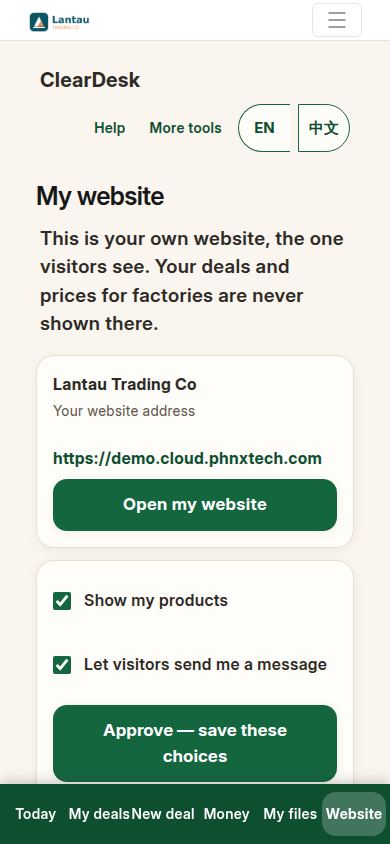
Tap Website at the bottom of ClearDesk. You see your company’s name, your website’s public address, and two simple switches: show my products, and let visitors send me a message. Nothing here shows your deals or your factory prices — visitors never see those.
2. Open My products
Tap My products. The list shows every product on your website: its photo, name, one sentence, price if you wrote one, and whether it is shown or hidden.
3. Add a product
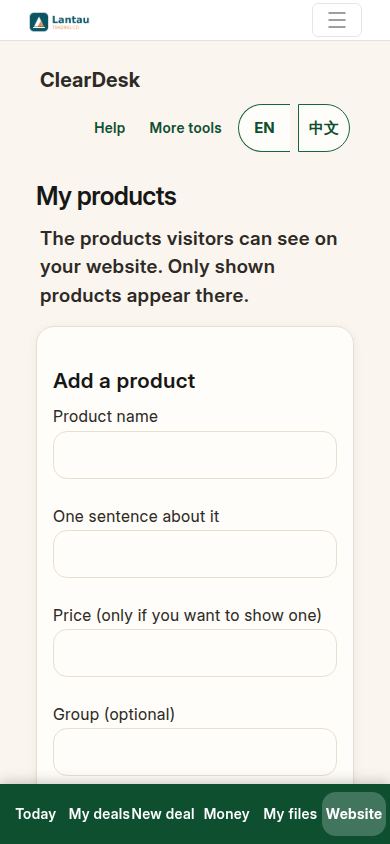
Write the product’s name and one sentence about it. The price is optional — write one only if you want visitors to see it, exactly as you write it. Add a photo, and keep Show this on my website ticked.
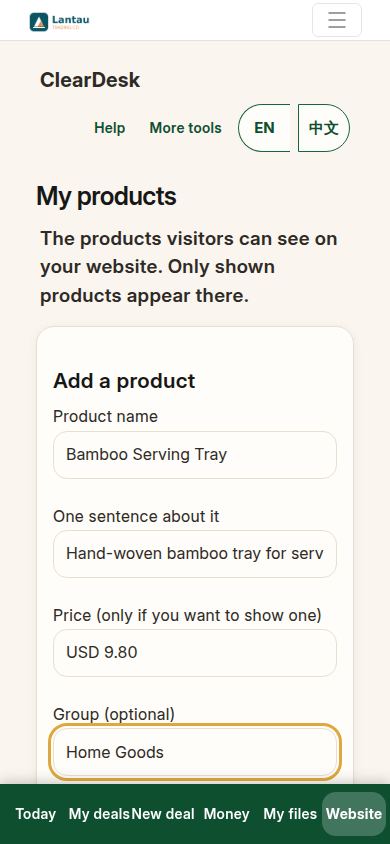
Press Approve — save this product. The product is saved exactly as written. Nothing is sent to anybody.
4. See it in your list
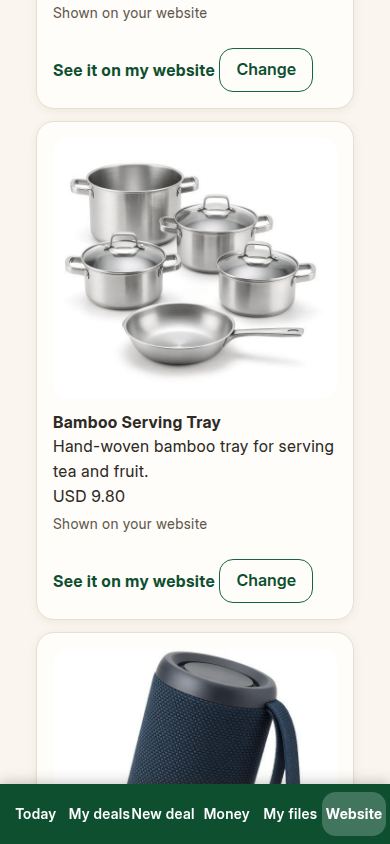
Your new product is now in My products, marked “Shown on your website”. Tap Change any time to edit the words, the price or the photo, or to hide it.
5. Look at it like a visitor
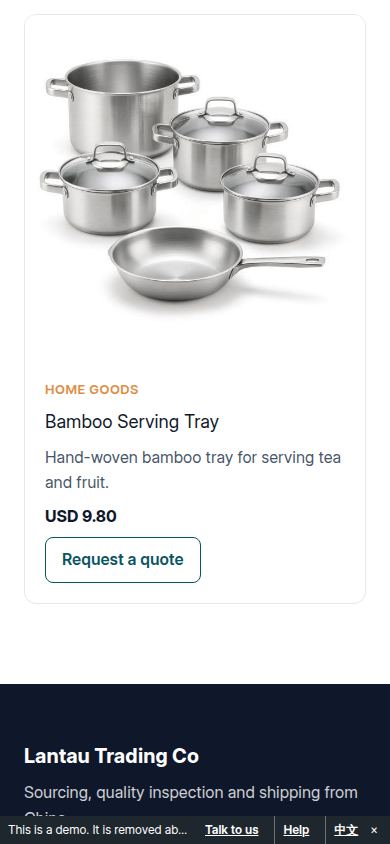
Open your website’s products page. Your product is there with its photo and sentence, like every other product you sell.
6. Open the product’s own page
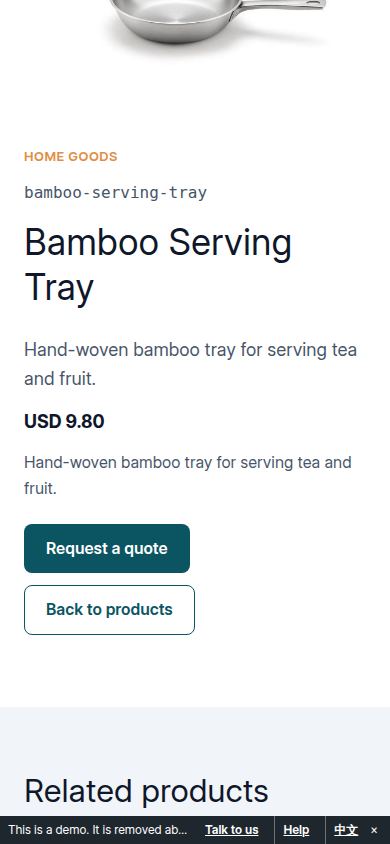
Tap the product. The visitor sees the photo, your sentence, and the price you wrote — and a Request a quote button. That button is how a visitor becomes a client; the next guide shows what happens then.
If something looks different
If your product is saved but missing from the website, open it in My products and check it says “Shown on your website” — a hidden product stays off the site until you show it. If the price is missing on the website, you left the price empty; that is fine, many sellers prefer “ask us”. A photo must be a JPG, PNG or WEBP picture. And if the Website tab itself is missing, pull the page down to refresh — your website and products live on your account, not on the phone.
Related pages
-
A client finds you
A visitor asks for a quote on your website. ClearDesk shows you the message in plain words, you approve, and it becomes your first deal with that client — all the way to the goods leaving.
-
Telling the world
Your website only brings clients if people visit it. Copy the link, share the picture code in WeChat, and know exactly what a visitor sees.
-
ClearDesk: the whole deal on your phone
ClearDesk runs a whole sourcing deal from your phone in plain words: prices, the client offer, both orders, production, the quality check, shipping papers and money. Nothing is ever sent until you press Approve.
Still have a question?
Ask the PHOENIX assistant in the chat at the bottom right, or send us a message. We reply within one business day.