
Sourcing Management · Beginner
From the first question to the money
One whole real deal, start to finish: ask, get prices, offer, client says yes, both orders, production, quality check, shipping papers, delivered, earnings. Every step with its real screen.
This is the whole journey of one deal, exactly as it happened on a real account. A client wants 500 wooden chairs. Follow the pictures: each one is the screen you will see at that step. Three short words used on the shipping papers: the PI is the price paper you send before shipping (proforma invoice), the PL lists what is in the boxes (packing list), and the CI is the invoice for the shipped goods (commercial invoice).
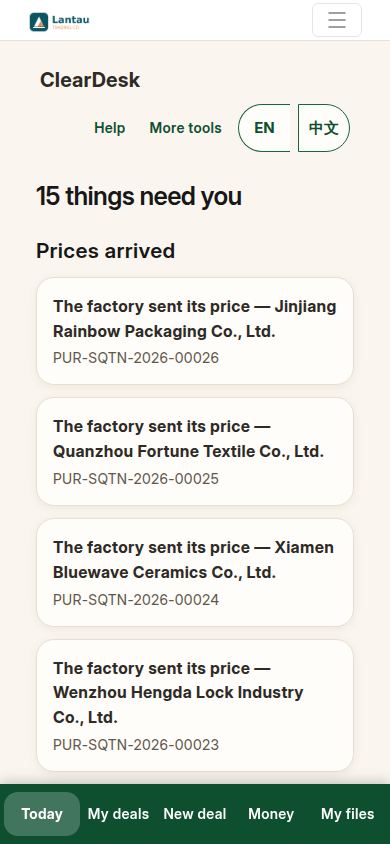
1. Start on Today
Today lines up what needs you. To begin a new deal, tap New deal at the bottom.
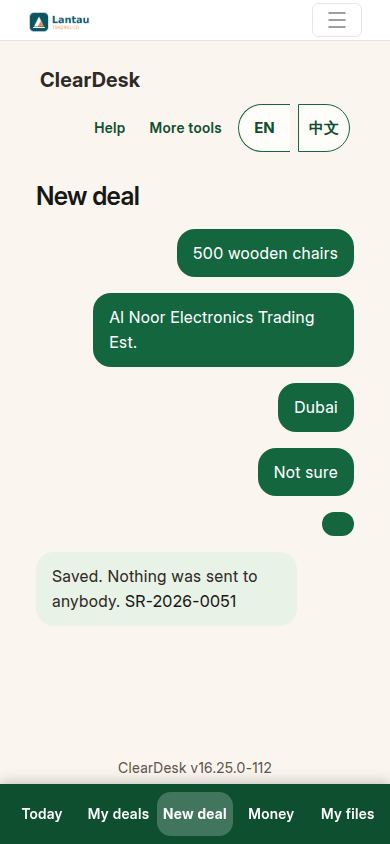
2. Answer the assistant, then approve
The assistant asks what you want to buy, how many, who it is for, and where the goods go. Check the summary and press Approve. Your deal is saved as a draft — nothing is sent to anyone.
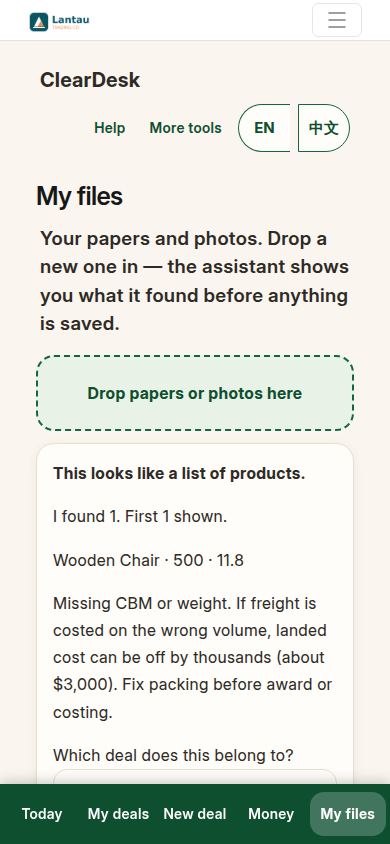
3. Drop in the factory’s price list
Factories often send an Excel price list. Tap My files, choose the file, and the assistant reads it and shows you what it found: the product, how many, and the price.
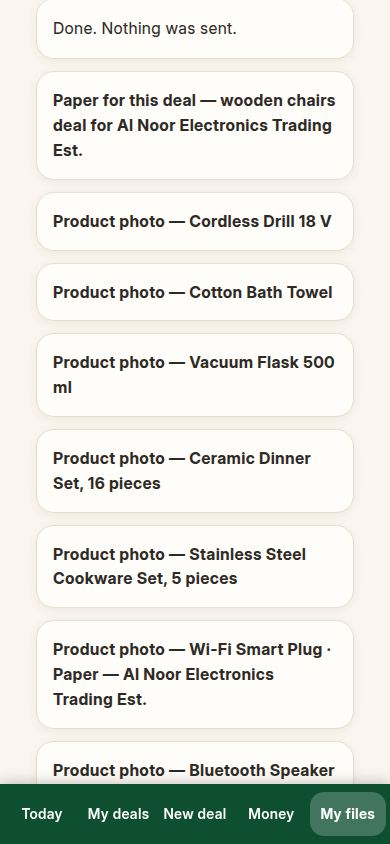
4. Approve what was found
Pick which deal the price belongs to and which factory sent it, then press Approve. ClearDesk answers “Done. Nothing was sent.” — the price is stored on the deal, and that is all.
5. Compare the prices
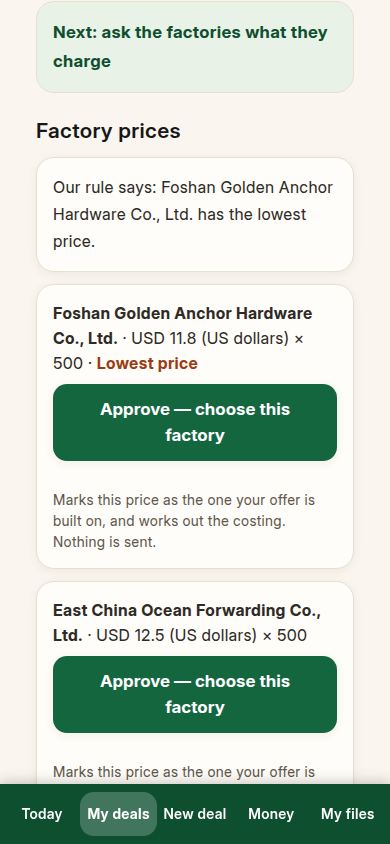
Open the deal and type in a second factory’s price, so you have two. ClearDesk lines them up and says its rule out loud: the lowest stored price is the recommendation. You still choose — press Approve — choose this factory on the one you want.
6. Make the offer
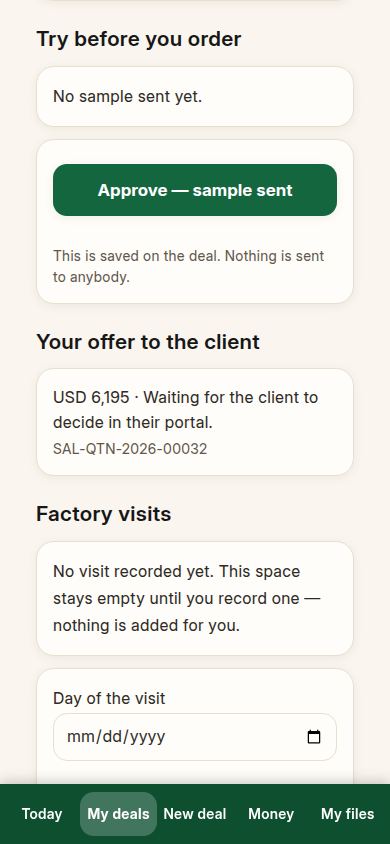
Press Approve — make the offer. ClearDesk writes the offer from the chosen price and puts it on your client’s own page. The deal now says it is waiting for the client. No email is sent.
7. Your client reads the offer
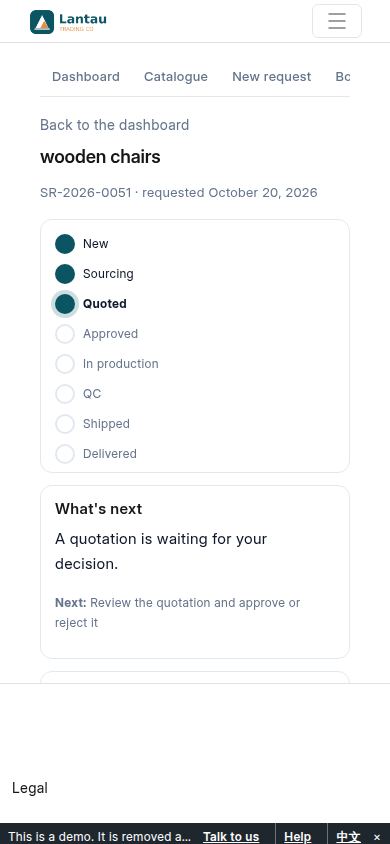
On their own page, your client sees the goods, the price and the terms — never your factory or your costs. They can approve, or say no and write you a note.
8. Your client approves
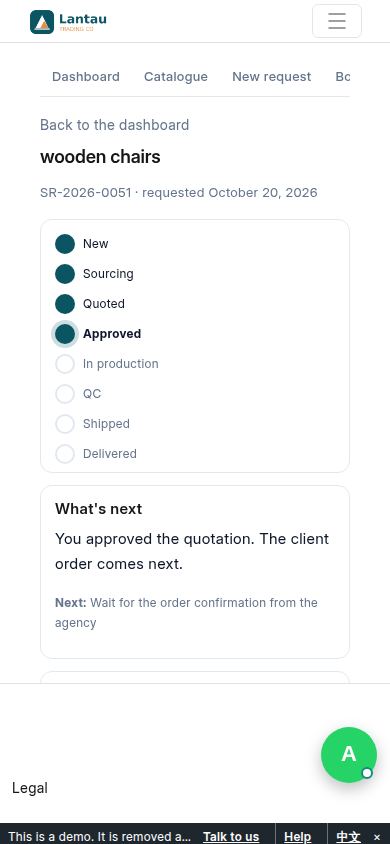
The client presses Approve. Their page confirms it, and your deal page updates by itself.
9. Make both orders
Back on your deal, press Approve — make the client’s order, then Approve — make the factory order. The client’s order is their promise to pay. Your order to the factory never shows the client’s name.
10. Follow the making
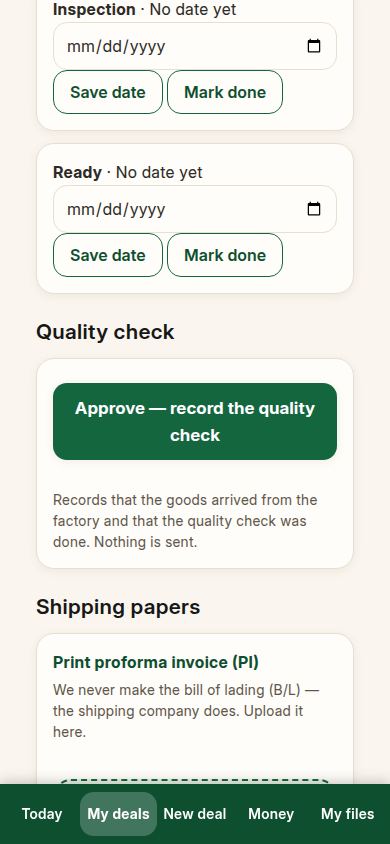
The deal lists the making steps: sample approved, production start, production end, inspection, ready. Type the planned date for a step and press Save date. If a date passes, ClearDesk says so in plain words — “19 days late” — so you can chase the factory early, not late.
11. Record the quality check
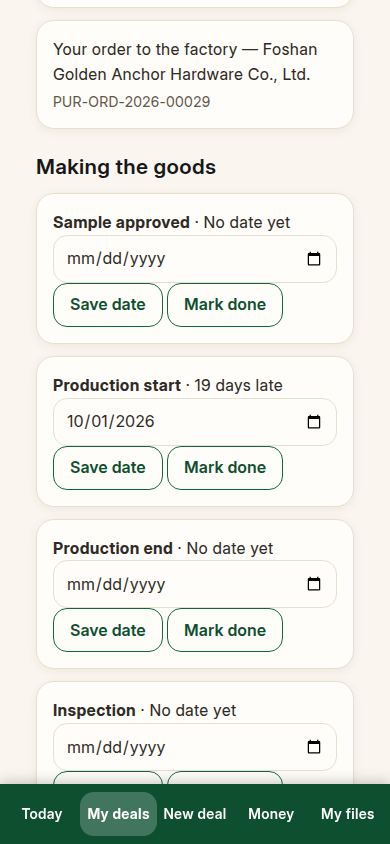
When the goods arrive from the factory and have been looked at, press Approve — record the quality check. ClearDesk stores the receipt of the goods and the inspection record together.
12. The goods leave, and the papers are ready
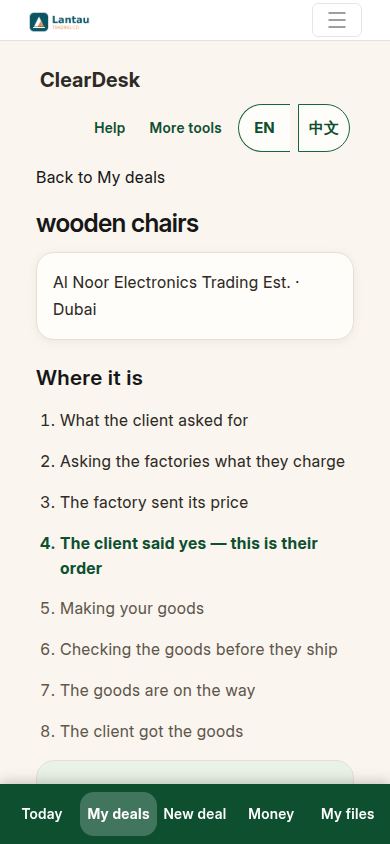
Press Approve — goods have left. Now the three papers can be printed: the PI, the packing list (PL) and the commercial invoice (CI), each with its full proper name on the printed page.
13. Add the bill of lading
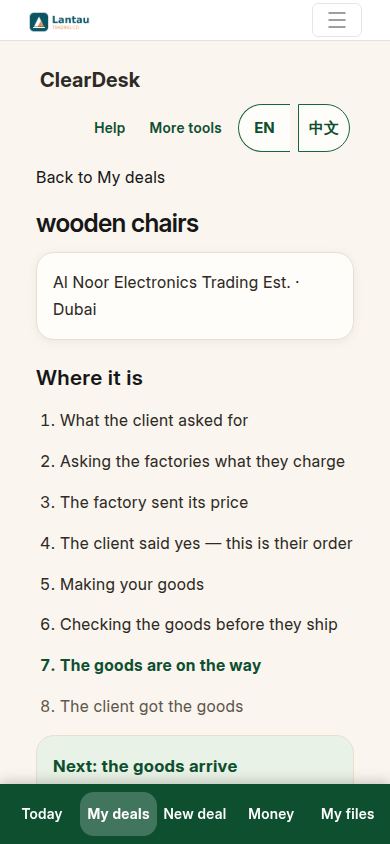
The bill of lading (B/L) is the shipping company’s paper, never yours — ClearDesk does not make one. When the shipping company gives it to you, upload it on the deal, and it stays with the deal for good.
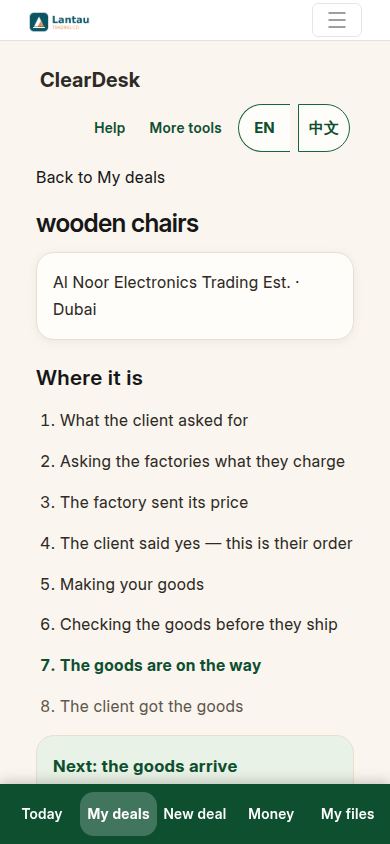
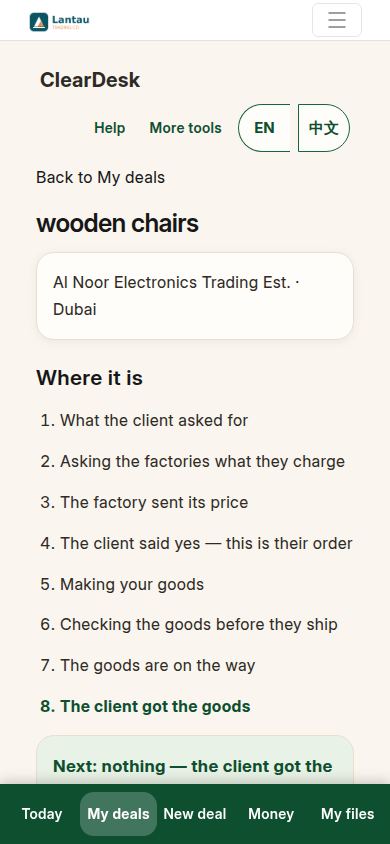
14. The deal is delivered
When the shipment reaches the client, the deal’s steps reach the last one: the client got the goods. The deal is complete, and it stays on your account for reordering later.
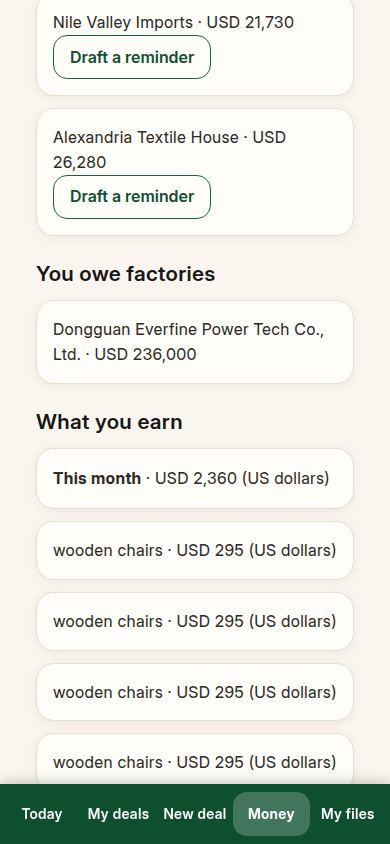
15. See what you earned
Tap Money. When the deal’s invoice is in, what you earned appears here — for the month, and deal by deal, each in its own currency. Money is never added together across currencies.
If something looks different
Your factories, prices and dates will be your own, and your client may take longer to answer — the deal simply waits, and Today will remind you. If a step you expect is not on the page yet, it is because the step before it is not finished; the top of the deal page always says what comes next. And if you get lost, tap Help at the top of ClearDesk.
Related pages
-
ClearDesk: the whole deal on your phone
ClearDesk runs a whole sourcing deal from your phone in plain words: prices, the client offer, both orders, production, the quality check, shipping papers and money. Nothing is ever sent until you press Approve.
-
Your first day with ClearDesk
Your first day, step by step: open ClearDesk, answer the assistant, approve your first deal, and look at a finished example. Ten minutes, nothing sent to anyone.
-
When the client asks for changes
The client said no, or asked for a better price. What you see, what to do, and how the revised offer reaches the client — step by step with real screens.
-
Money: who owes what, and what you earned
What clients owe you, what you owe factories, how to draft a polite reminder without sending it, and where your earnings appear when a deal finishes.
Still have a question?
Ask the PHOENIX assistant in the chat at the bottom right, or send us a message. We reply within one business day.