
Sourcing Management · Beginner
When the client asks for changes
The client said no, or asked for a better price. What you see, what to do, and how the revised offer reaches the client — step by step with real screens.
Clients push back. The price is too high, the colour is wrong, the date does not suit them. That is normal business, and ClearDesk treats it calmly: the client says no on their page, you see exactly what they said, and you answer with a revised offer. Nothing is argued over email, and the old offer stays on the record.
1. You send the offer as usual
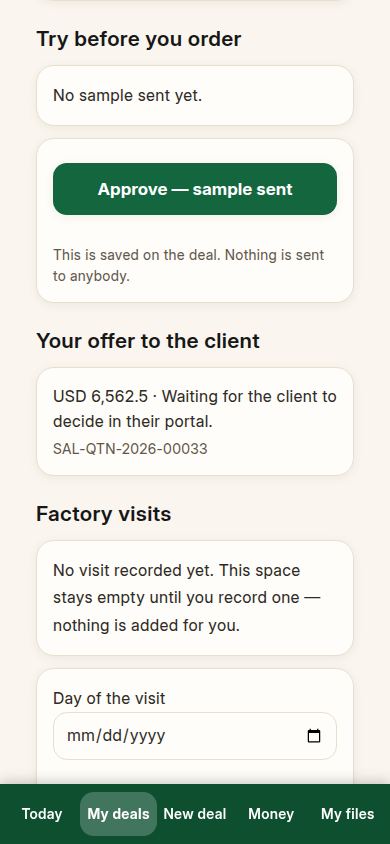
Make the offer from the chosen factory price, and the deal waits for the client, like any other deal.
2. The client says no, and tells you why
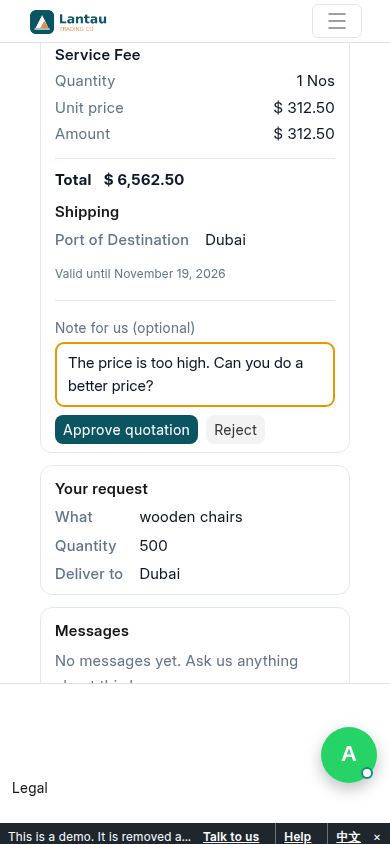
On their page, the client can write a note — “The price is too high. Can you do a better price?” — and press Reject. The note is part of the decision, not a lost email.
3. The client sees it is sent
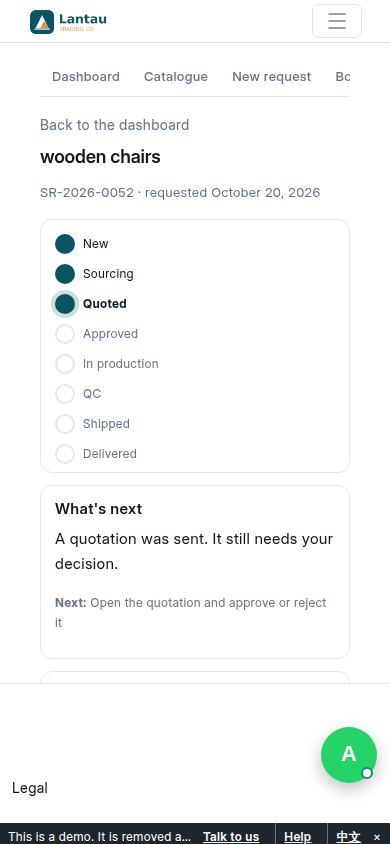
Their page confirms the answer went through. There is nothing more for the client to do until you reply.
4. You see the no, in plain words
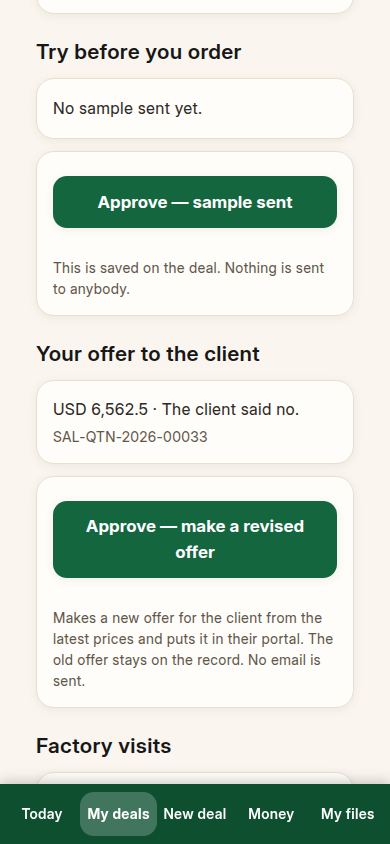
Open the deal. It says “The client said no.” and shows you their note, word for word. Take a breath — the deal is not dead, it is waiting for your answer.
5. Get a better price
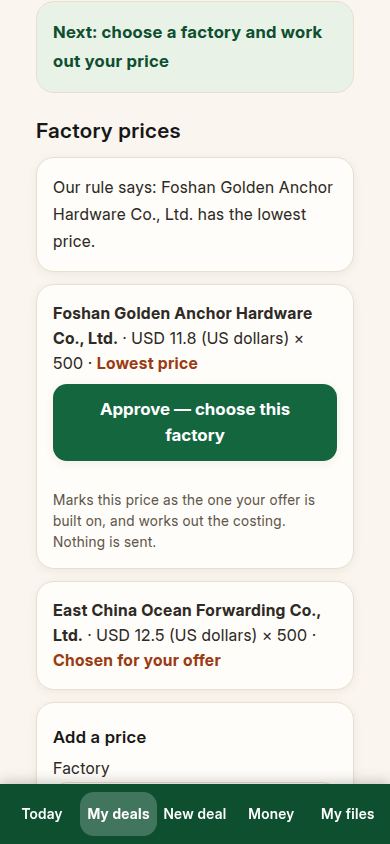
Ask the other factory, or ask the same factory again. Type the new price on the deal, exactly like the first one. The new price lines up next to the old ones.
6. Choose, and make the revised offer
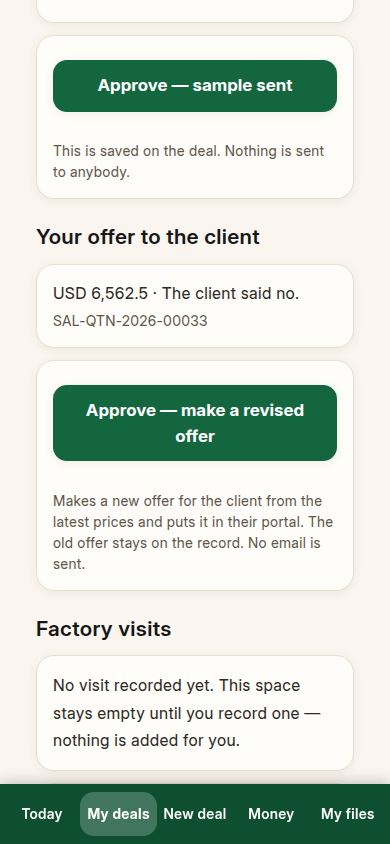
Press Approve — choose this factory on the better price, then Approve — make a revised offer. ClearDesk builds a fresh offer from the latest prices and puts it on the client’s page. The old offer is kept on the record; no email is sent.
7. The client sees the new offer
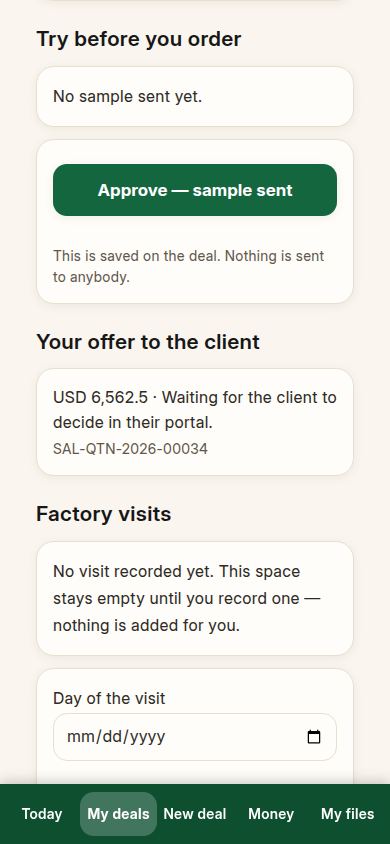
The deal waits again, and the client’s page shows the new offer with the new price. The old “no” stays visible on the record, so nobody has to remember what was said.
8. The client reads it fresh
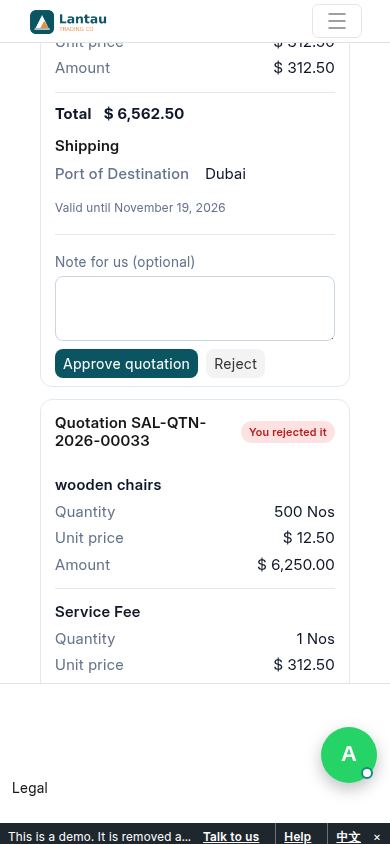
Your client opens their page and sees the new offer on its own. They can take their time; the deal waits without nagging anyone.
9. The client approves
This time the client presses Approve. Their page confirms it straight away.
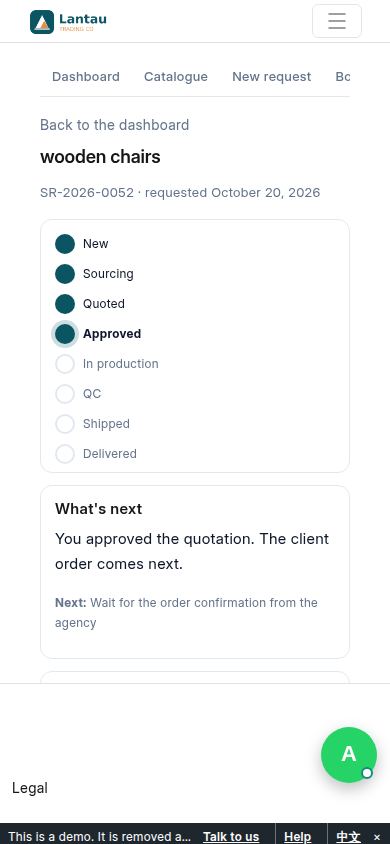
10. Your deal says yes
Open your deal: “The client said yes.” From here the deal runs exactly like any other — both orders, making, checking, shipping. The earlier no is still on the record if you ever need to see what changed.
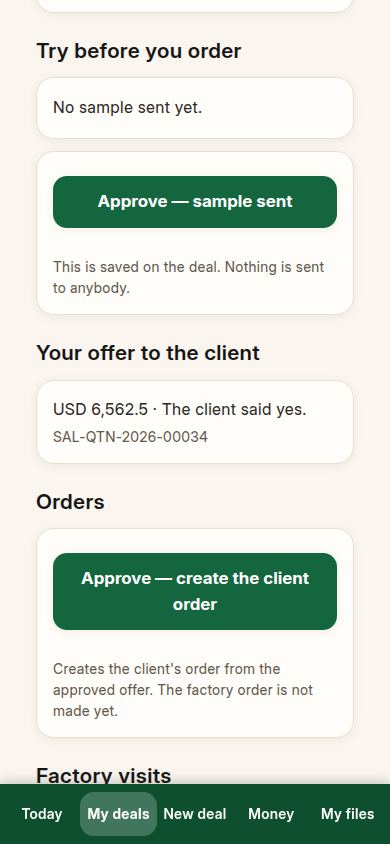
If something looks different
If the client says no without a note, the deal still tells you they said no — call them, agree what to change, then follow the same steps. If the client ignores the offer, nothing bad happens: the deal waits, and Today reminds you it is waiting. There is no limit on revised offers; each one replaces the last on the client’s page, and every version stays on your record.
Related pages
-
From the first question to the money
One whole real deal, start to finish: ask, get prices, offer, client says yes, both orders, production, quality check, shipping papers, delivered, earnings. Every step with its real screen.
-
Samples first, before the big order
Send a sample, hear what the client thinks, send a better one, and only then run the deal. The sample story on the deal page, step by step.
-
ClearDesk: the whole deal on your phone
ClearDesk runs a whole sourcing deal from your phone in plain words: prices, the client offer, both orders, production, the quality check, shipping papers and money. Nothing is ever sent until you press Approve.
Still have a question?
Ask the PHOENIX assistant in the chat at the bottom right, or send us a message. We reply within one business day.