
Sign in to your new site
Open the welcome email, choose your password and sign in to your own site for the first time.
Available Updated 2026-10-10
What it is
A few minutes after you confirm your email address, your site is ready and we send you a welcome email with the subject “Your site … is ready”. It holds your site’s address, a link to choose your password and your username, which is the email address you signed up with.
Your site’s address is your name on our cloud, for example https://harbour.cloud.phnxtech.com.
Why it matters
You are the first user of your site and its administrator: you add your team, set your brand and choose how you earn. Nobody else can sign in until you add them.
Steps
- Open the welcome email. If it is not in your inbox after 10 minutes, look in the spam folder.
- Select set your password. The link works once.
- Type a strong password twice and save it. Use at least 10 characters; a password manager helps.
- You are signed in and see the Day One page. It guides you through your brand, your company details and your bank details — see Your day-one checklist.
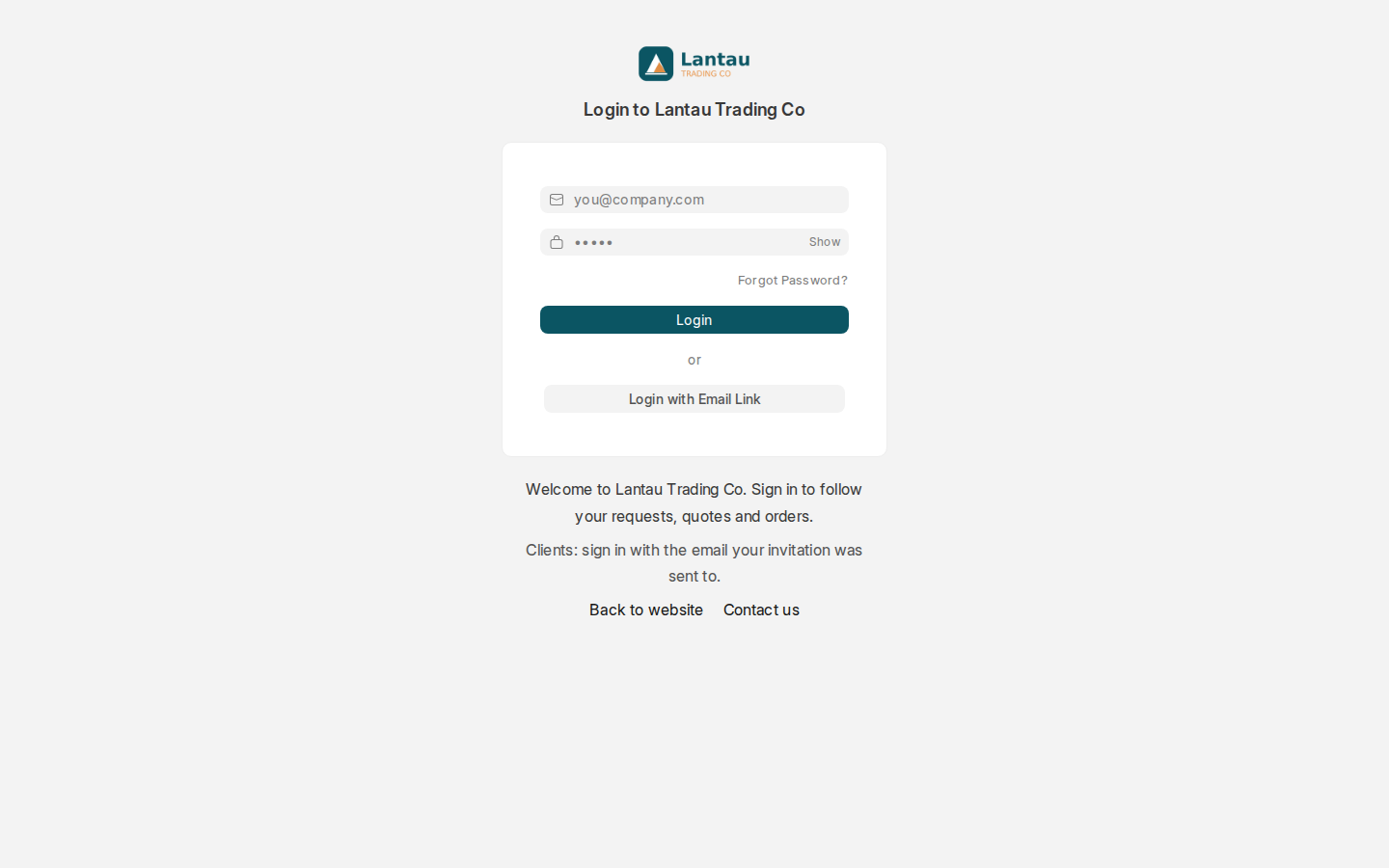
- Save your site’s address as a bookmark. Next time, open it and sign in with your email address and password.
Common mistakes
- Opening the password link a second time. It works once; use Forgot Password? on the sign-in page instead.
- Signing in on cloud.phnxtech.com. That is our platform, not your site. Your site’s address starts with your own name.
- Sharing your login with a colleague. Add each person as a user instead, see Add your team.
Tips
- Your site opens in the language you chose at signup. Each user can change it, see Change your language.
- Your free trial lasts 14 days and needs no card.
Related pages