
Messages with clients
One message thread per request and per order, with files, on the portal and in your forms.
Available Updated 2026-10-07
What it is
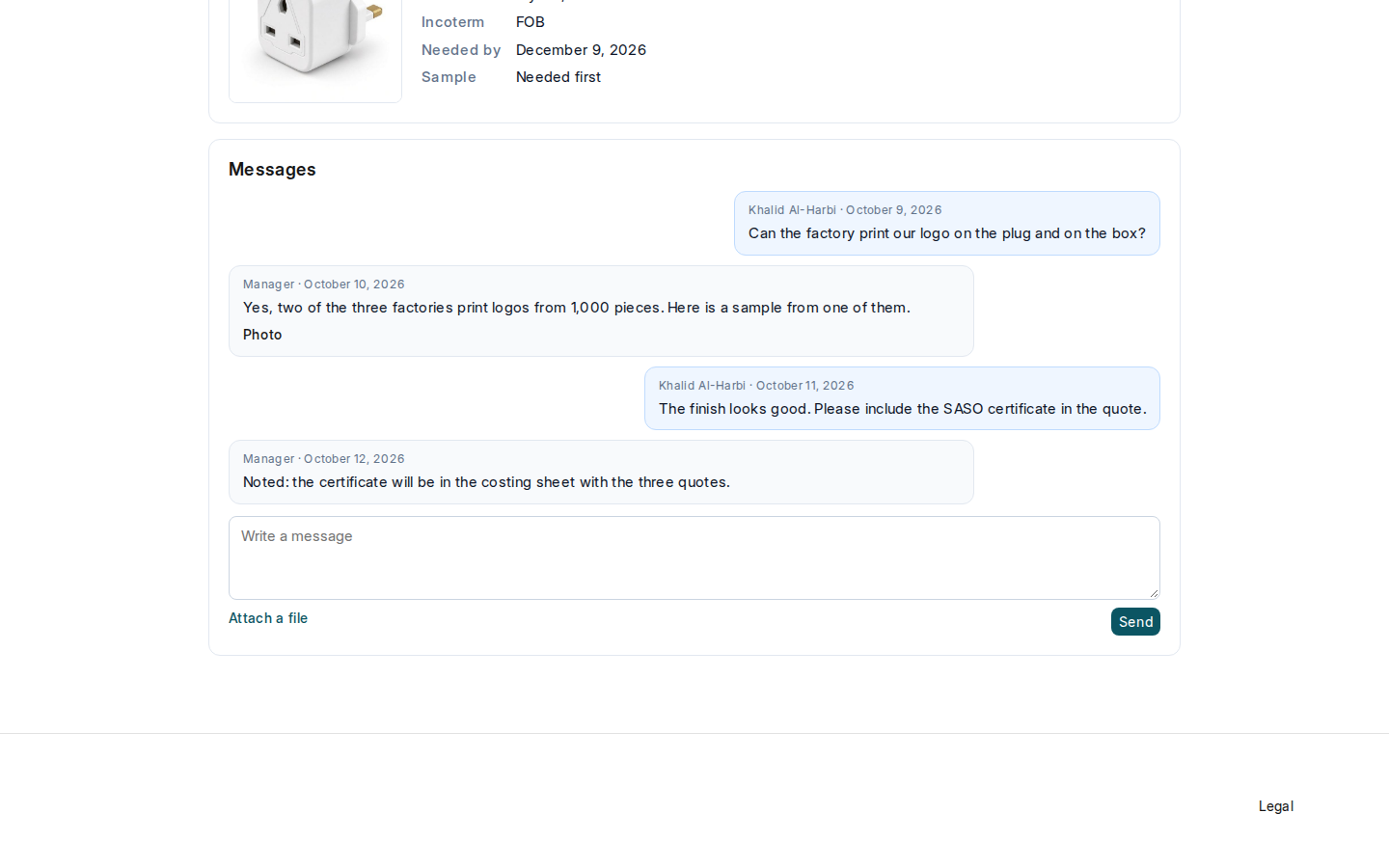
Every request and every order has its own message thread. The buyer writes on the portal; you answer at the bottom of the request or client order form, under Client messages. Both sides can attach photos, PDF, Excel and Word files.
Why it matters
Questions and answers stay with the request or order they are about, so anyone on your team can pick up the conversation. Files are kept with it.
Steps
- When a buyer writes, you get a notification. It goes to the request’s Assigned Agent, or to every Sourcing Manager and Sourcing Agent when there is none.
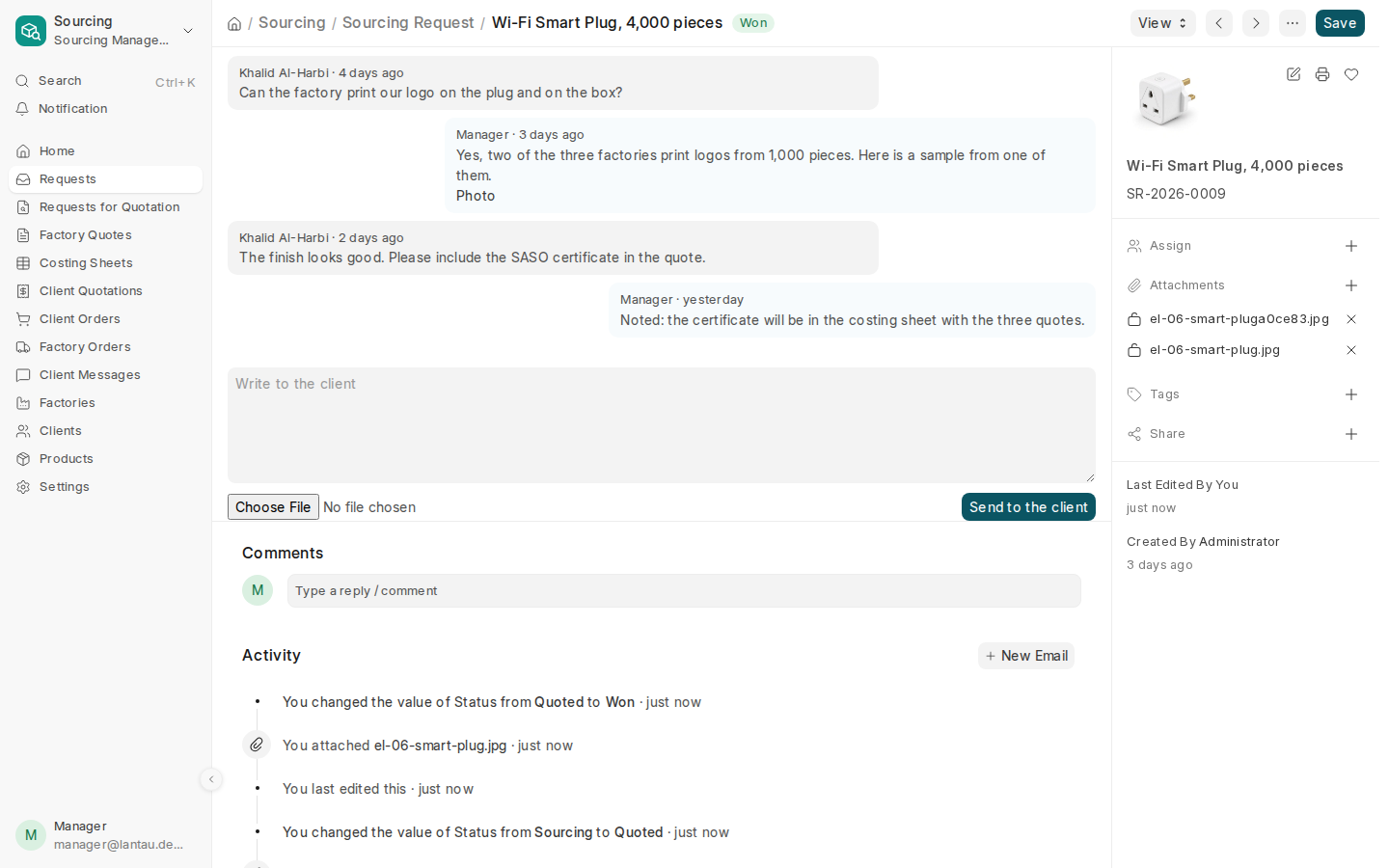
- Open the request or client order. Under Client messages, type your answer in Write to the client.
- To add a file, select Choose File (JPG, PNG, WEBP, PDF, XLSX or DOCX, up to 10 MB).
- Select Send to the client. The client’s buyers get an email that a new message is waiting, and see it on the portal.
Common mistakes
- Answering in a comment instead. Comments at the bottom of a form are internal; the client never sees them.
- Sending a factory’s quotation PDF as an attachment. It shows the factory’s name and prices.
Tips
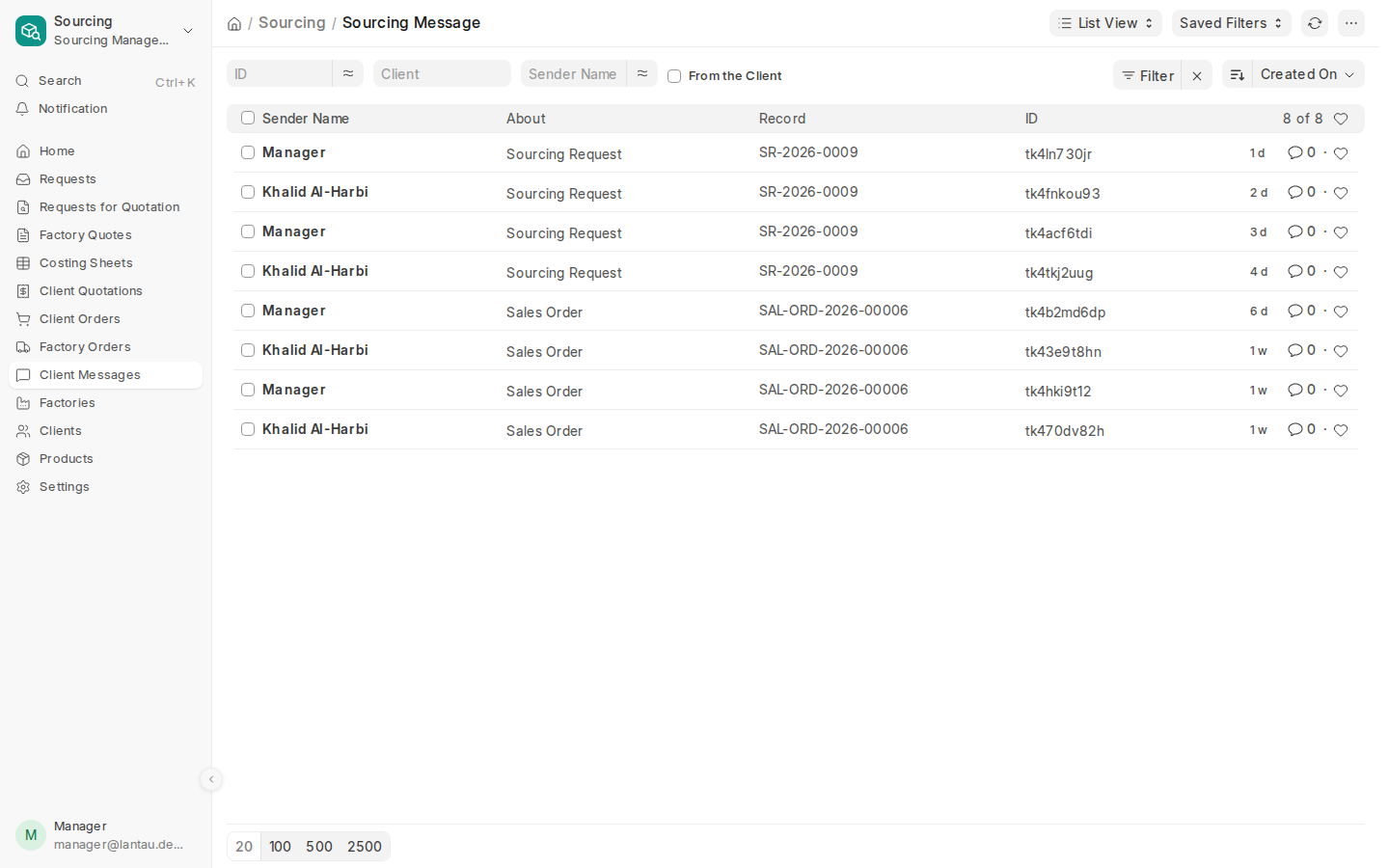
- Sourcing > Client Messages lists every message from every client, newest first. Tick From the Client to see only theirs.
- A client order shows Client messages once it is submitted.
Related pages