
Invite a client to the portal
Send a client's buyer an invitation; they choose a password and land on their own portal.
Available Updated 2026-10-07
What it is
The client portal is where your clients send requests, approve quotations, follow their orders and write to you, on your site and with your brand. You invite each buyer who works with you: they get an email from your site, choose a password and land on their portal.
Why it matters
A buyer on the portal answers quotations in one click, sees where every order stands without asking, and keeps the messages about each request in one place. You stop chasing approvals in chat.
Steps
- Open Sourcing > Clients and open the client.
- Select Invite to portal.
- Type the buyer’s Email and Full Name, then select Invite.
- The buyer gets an email from your site with a link to choose a password. The link is valid for 3 days.
- After choosing a password, the buyer is on the portal and sees only this client’s requests, quotations and orders.
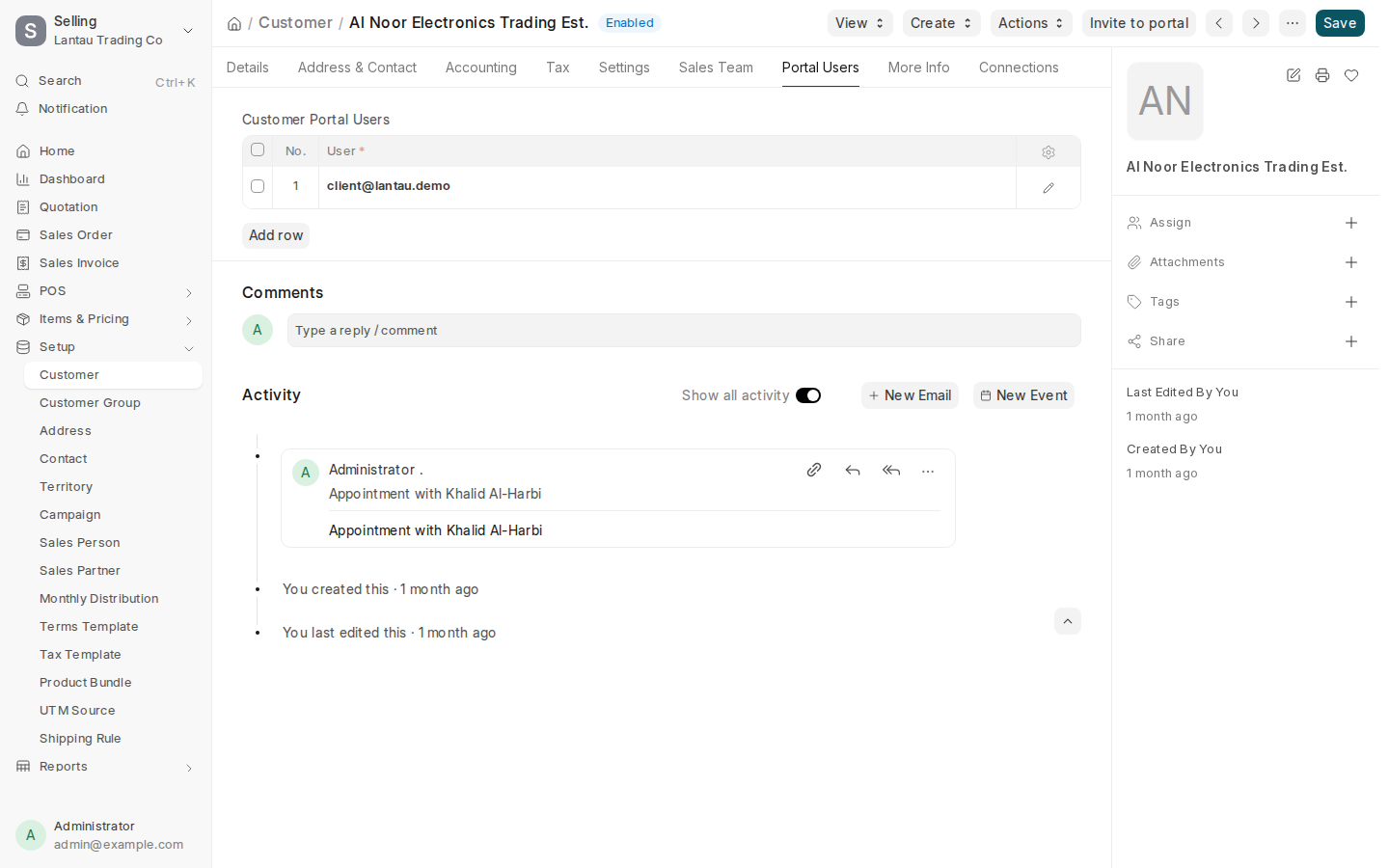
The buyers of a client are listed on its Portal Users tab.
Common mistakes
- Inviting a buyer to the wrong client. They then see that client’s quotations and orders. Check the client’s name before you select Invite.
- Waiting more than 3 days. The link no longer works: select Invite to portal again to send a new one.
- Sharing one login among a client’s buyers. Invite each person, so you know who approved what.
Tips
- A buyer who works for two of your clients can be invited to both. On the portal they choose which client a new request is for.
- To end a buyer’s access, remove them from the client’s Portal Users tab and save.
- Buyers sign in on your site’s sign-in page, with their password or with a link sent to their email.
Related pages