
Part 3 · The sourcing workflow
Send the client a quotation
Make the client's quotation from the costing sheet; the client approves or rejects it in the client portal.
Available Updated 2026-10-07
What it is
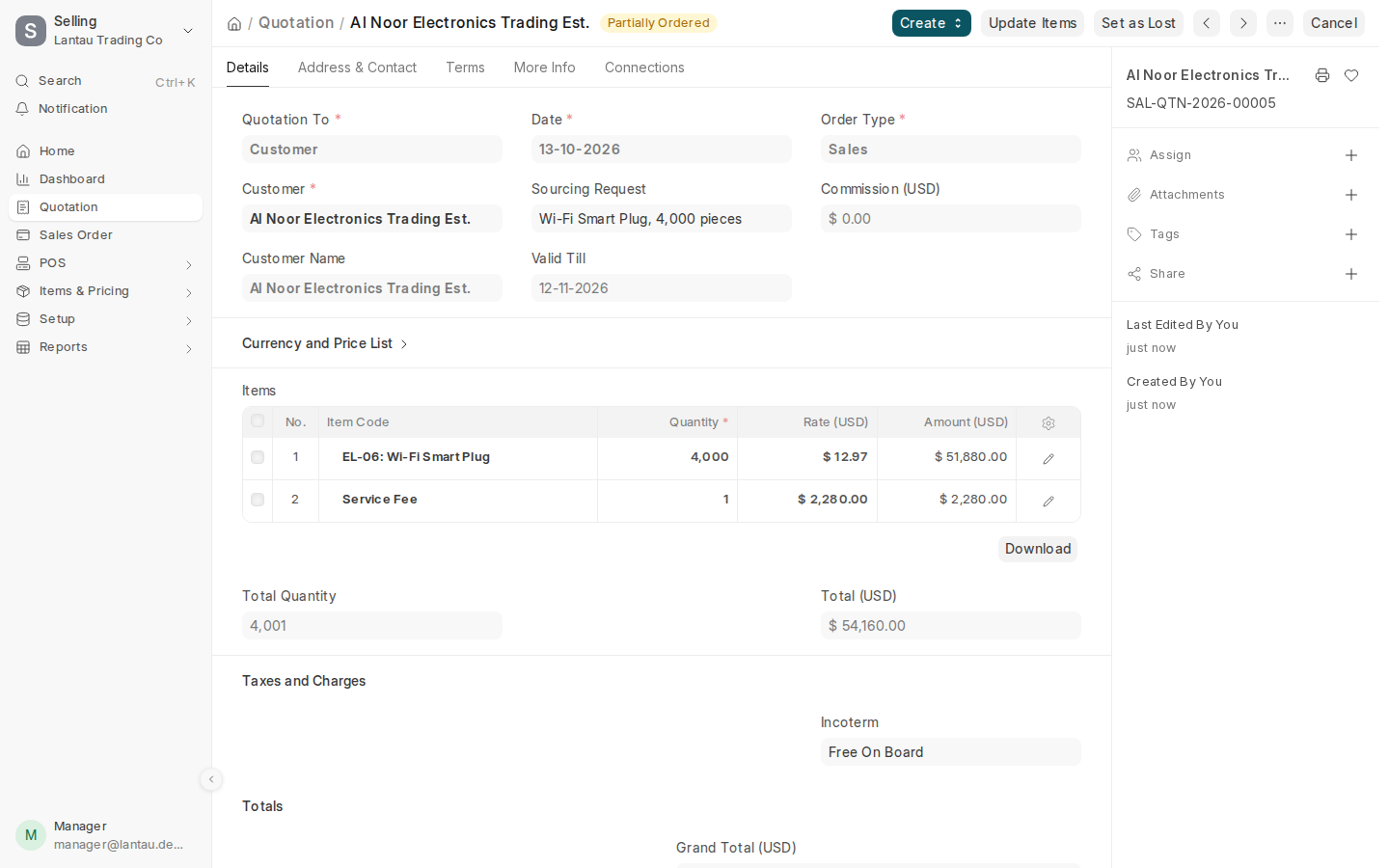
The quotation is what the client sees: the products at the client’s price and, with the Commission model, your service fee as its own line. It never shows the factory, its prices, the cost rows or your rebate.
Why it matters
Made from the costing sheet, the quotation always matches the numbers you checked. The client answers in the client portal, so the decision is recorded with the quotation instead of in a chat.
Steps
- Open the submitted costing sheet and select Create > Quotation.
- Check the quotation. Valid Till comes from Prices Valid For (Days) in Sourcing Settings.
- Select Submit. The request’s status becomes Quoted, and the client sees the quotation in the client portal.
- If you also want to send it as a PDF, select the printer icon, then PDF.
- When the client approves or rejects it in the portal, you get a notification (the bell at the top). The decision and the client’s note are under Client Decision on the quotation.
- If the client says no outside the portal, select Set as Lost on the quotation.
Common mistakes
- Changing prices on the quotation itself. Change the costing sheet (cancel and amend it) and make a new quotation, so the costing and your earnings stay right.
- Sending a quotation past its Valid Till date. The client can no longer approve it in the portal.
Tips
- The costing sheet’s status follows the quotation: Sent when the quotation is made, Lost when it is set as lost, Accepted when the client order is submitted.
- Clients without a portal login can approve by message; record their answer when you make the order.
Related pages