
Part 3 · The sourcing workflow
Ask suppliers for prices: the RFQ
Create a request for quotation linked to the client's request, choose at least two suppliers and prepare the invitations.
What it is
An RFQ asks several suppliers for a price. It can be linked to a client’s request. Purchasing is under More.
Why it matters
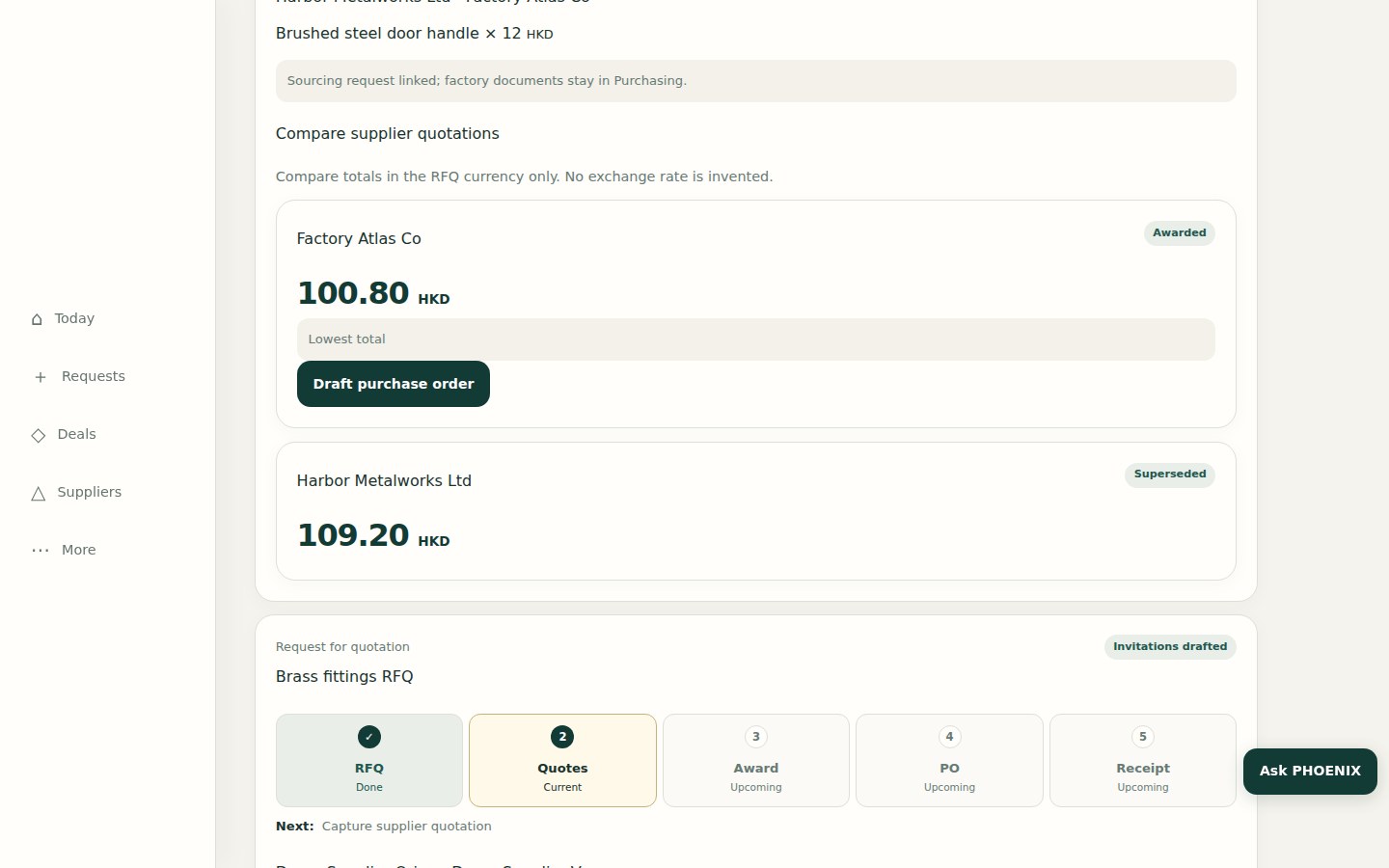
Prices from several suppliers, all linked to one request, can be compared fairly in the next steps. An RFQ moves from draft to invitations drafted and then to awarded.
Steps
- Make sure the suppliers you want are recorded under Suppliers.
- Open More and then Purchasing.
- Choose New RFQ. Give it a title, link the sourcing request, choose the currency, and add the products and quantities.
- Choose at least two suppliers, then create the RFQ draft.
- Choose Prepare supplier invitations. This prepares drafts only. The app sends no email or message, so share the RFQ with the suppliers yourself.
Common mistakes
- Creating an RFQ with no link to the request. Link the sourcing request so that quotations follow it.
- Asking for prices before the items and requirements are complete.
- Waiting for replies that were never sent. Preparing invitations does not send them.
Tips
- Keep supplier names out of comments on the request, because the client can open it.
- Factory documents stay in Purchasing. The client portal does not show them.
Related pages
-
Record the client's request
Record what a client wants to buy, with its items, requirements and attachments, or let the client send it from the portal.
-
Enter each supplier's quotation
Record each supplier's Supplier Quotation against the RFQ so that prices can be compared.
-
Compare the quotations and award one
Compare Supplier Quotations side by side and award the one you will buy from.