
Part 11 · How PHOENIX supports you
Invoices and your card
See and download your invoices, and change the card your plan is paid with.
What it is
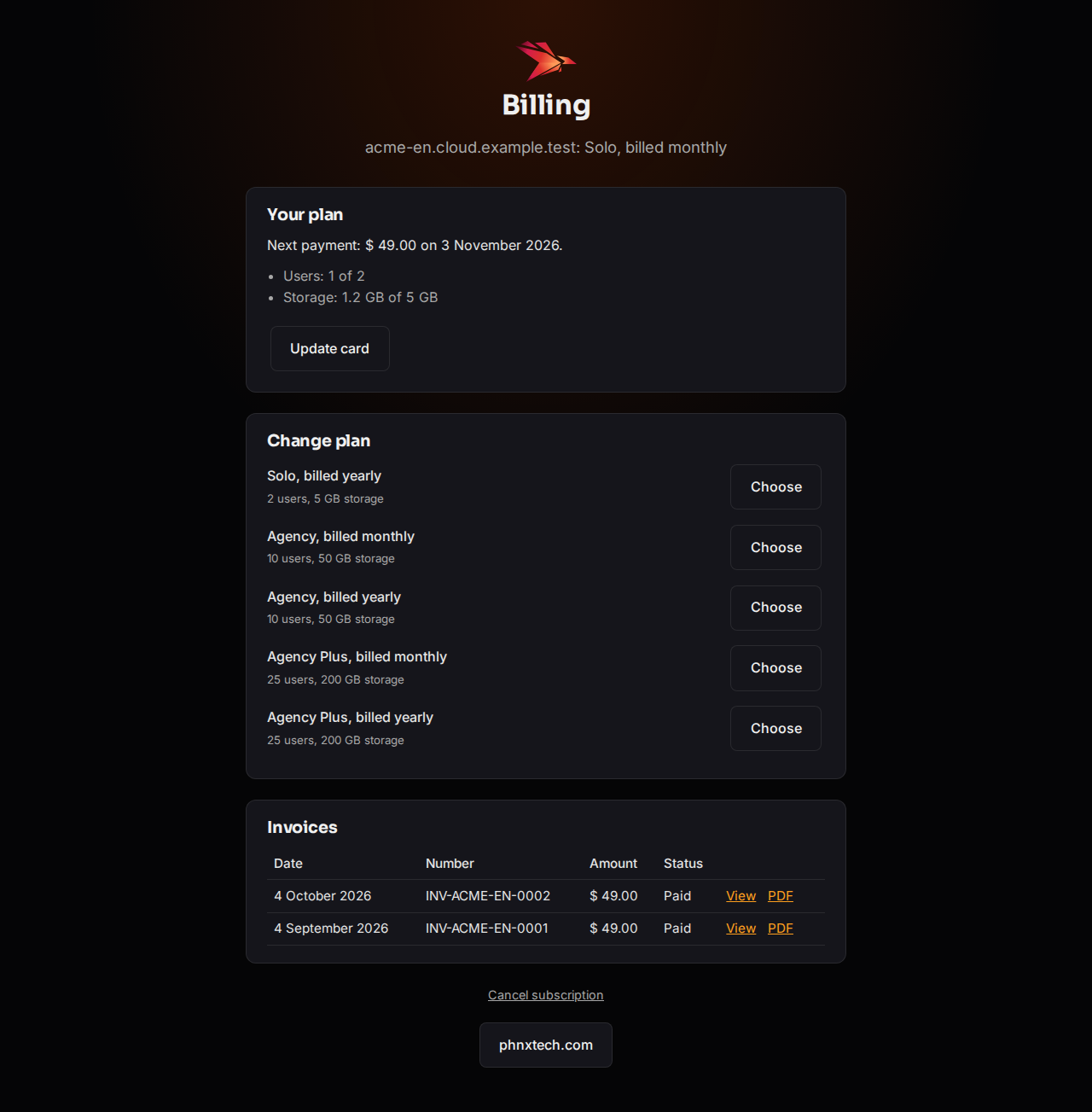
Every payment has an invoice from Airwallex, our payment provider. My account lists them on the Invoices card, newest first, with the date, number, amount and whether it is paid; the billing page lists them too. View opens the invoice; PDF downloads it.
Your card is kept by Airwallex. To pay with another card, use Update card.
Why it matters
Your accountant needs the invoices. And a card that expires stops the payments: change it before it does, and your site never pauses.
Steps
To download an invoice:
- Open My account from your name at the top of the desk.
- On the Invoices card, select View or PDF on the invoice’s row.
To change your card:
- Select your name at the top of the desk, then Billing.
- Select Update card. The Airwallex page opens.
- Enter the new card and confirm.
- Back on the billing page: “Thank you. Your new card is saved; Airwallex may take a minute to show it.”
If a payment is waiting, Airwallex tries it again at once with the new card.
Common mistakes
- Waiting for the card to expire. Change it as soon as you have the new one.
- Looking for the invoices in your site’s own accounting. They are your invoices from us, on My account and the billing page.
Tips
- We never see your card number: you enter it on the Airwallex page only.
Related pages
-
My account
Your plan, usage, team, invoices, data export, brand and closing your account, on one page in your site.
-
When a payment fails, and a paused site
What happens when a payment does not go through, when a site is paused, and how to open it again.
-
Change your plan
Move to a bigger or smaller plan, or from monthly to yearly billing, on the billing page.